
Using Jonquil
Jonquil is a DrRacket-style IDE for Clojure: a Definitions editor above an Interactions console, with a Run button that runs the top pane and a Stop that actually stops it. This page covers the window, Run and the REPL prompt, stdin, Stop, editing, find and replace, and themes. The rest of the guide has its own pages: Files and tabs, Help and the inspector, Dialects and runtimes, Plugins, Driving Jonquil from an agent, Keys and Known limits.
Edge cases sit in folded blocks: click a bold line to open one.
The window
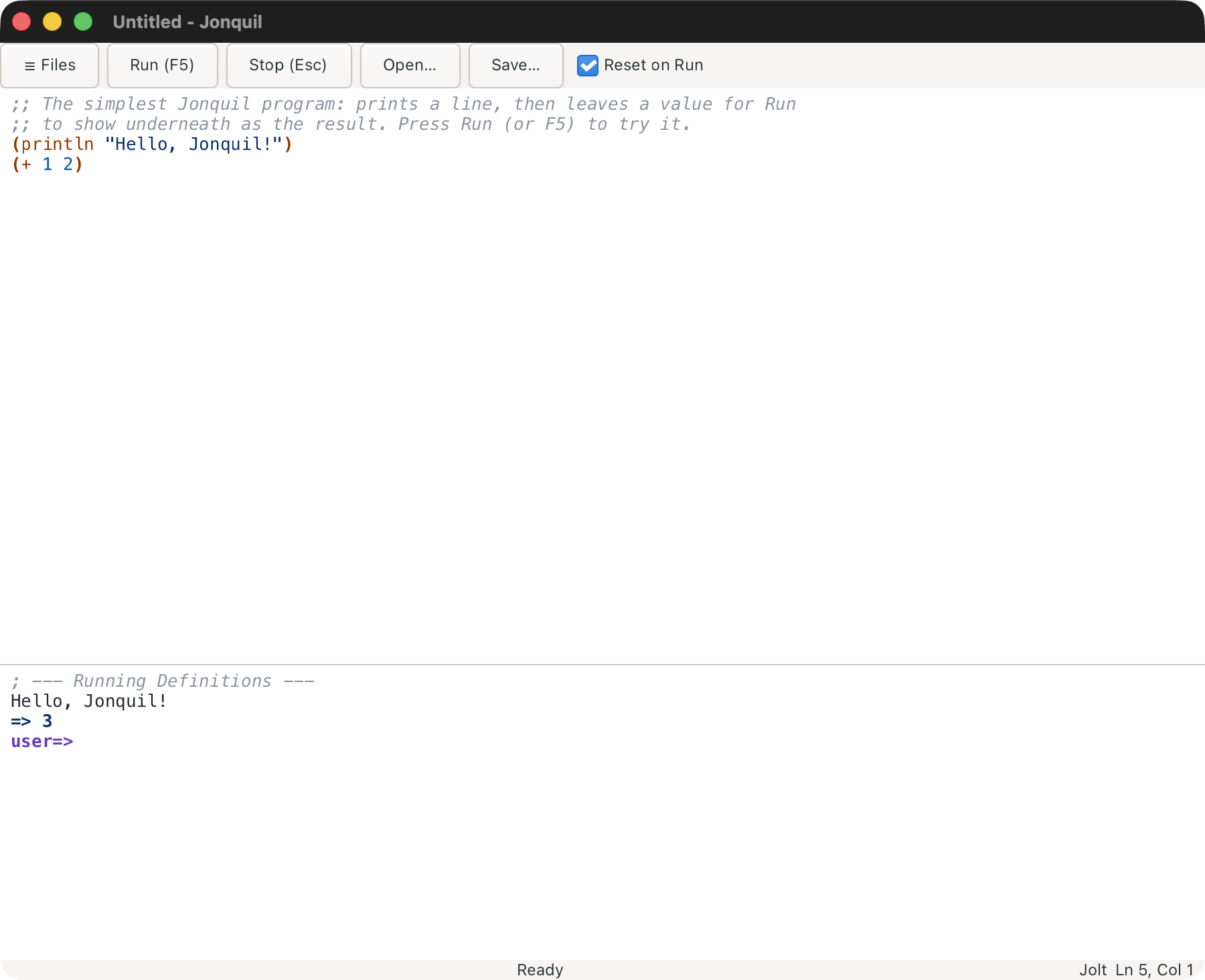
- The toolbar holds ☰ Files (the file tree), Run (F5), Stop (Esc), Open…, Save… and a Reset on Run checkbox.
- The Definitions editor is where you write a program. The Interactions console below it shows output and takes expressions at a
user=>prompt. Drag the divider to resize. - The status label reads
Ready,Running…,Waiting for inputorStopped. The dialect label beside it names the runtime (see Dialects and runtimes). - The window title shows the open file (or
Untitled) and a leading*for unsaved changes.
Running a program
Run, F5 or Cmd/Ctrl+R evaluates the whole Definitions pane. The console prints a ; --- Running core.clj --- banner, streams the output and ends with the result, such as => 3. Jonquil checks brackets first and refuses to run a broken pane. A second Run during a run just warns.

docs/demos/hello.clj is the simplest example.
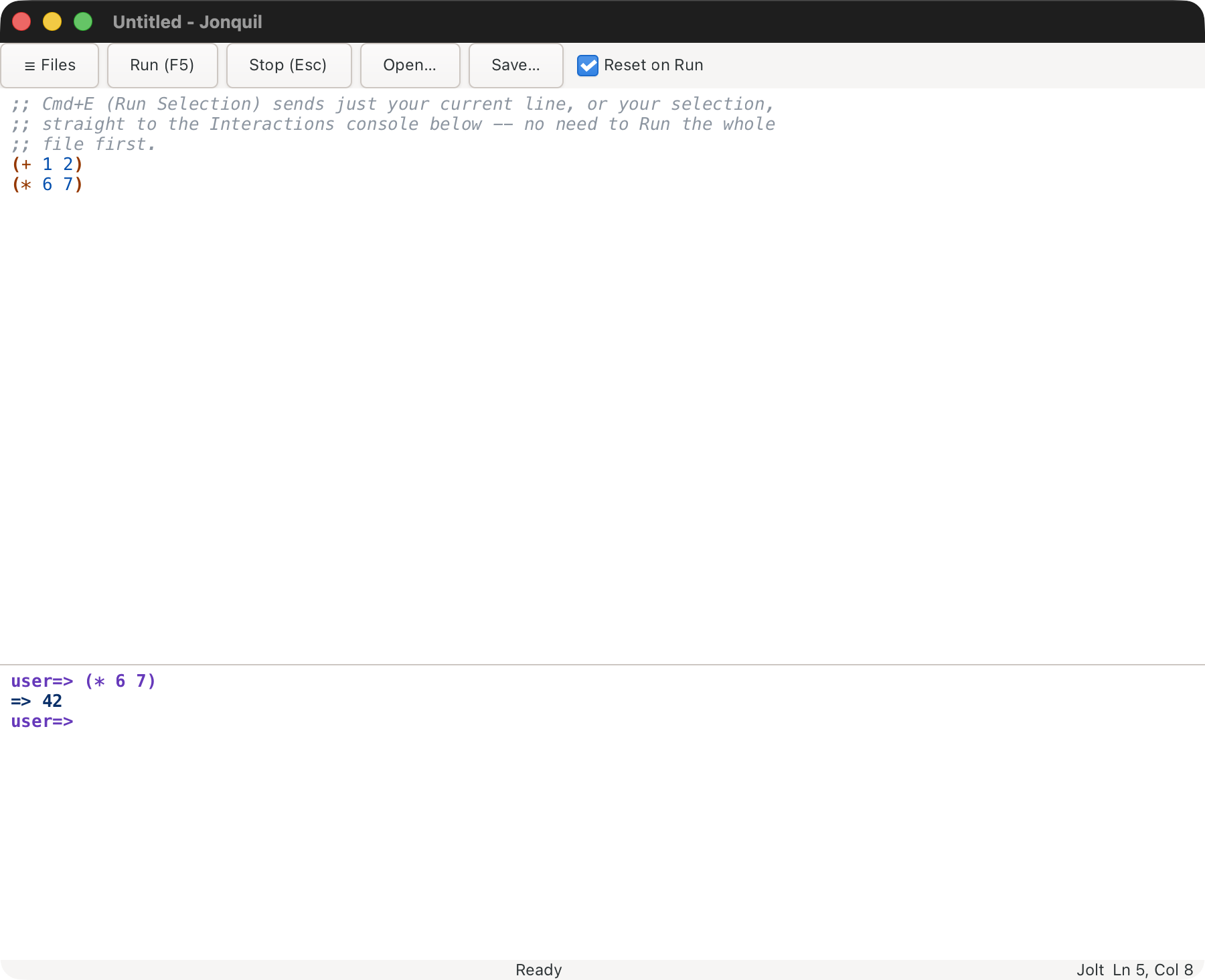
- Cmd/Ctrl+E evaluates the selection (or current line) at the console prompt, echoed there and added to the REPL history.
- Cmd/Ctrl+Enter, or Run Form in the right-click menu, runs the top-level form around the caret (inside
(comment ...), the form that holds the caret). With no form there, the status bar says so.
Run Form's details: discarded forms, metadata and the flash
A form switched off with #_ counts as no form. Metadata in front of a form runs with it. The form flashes briefly; a key pressed during the flash cancels it, so it never types over your code.
Changed forms
Once a tab has run, a thin bar in the Definitions editor's left gutter marks each top-level form you've edited since it last ran. Run the forms changed since they last ran, in the palette, sends just those, in order, as one evaluation the way Run Selection does, and the console says how many. With nothing marked it says so, and in a tab that hasn't run yet it asks you to run it once first.
A form counts as changed when its code changed: reindenting, formatting and editing a comment don't mark it, but any change to a symbol, a number or a string's text does. (comment ...) blocks are never marked. A Run that ends without an error records every form as run; Run Form and Run Selection record the forms they sent. An evaluation that fails or is stopped records nothing, so its forms stay marked. A file reloaded from disk keeps its record, so the forms that differ from what last ran show up marked.
Change sets
A change set holds the forms you changed for one idea, so you can look at them together, send them to the running program in one go, or put them all back. Make a Change Set (type "change set from the forms" in the palette) gathers the active tab's changed forms, the ones the gutter marks, and opens the Change Sets panel on the right with one section per form: its file, its name (defn f) and a diff of the text it had at the last Run that ended well against the text it has now. A form that is new since then reads "(new)" and shows as all added. Type a name and press Save Set. The panel needs a saved tab that has run once; with nothing changed the status bar says so.
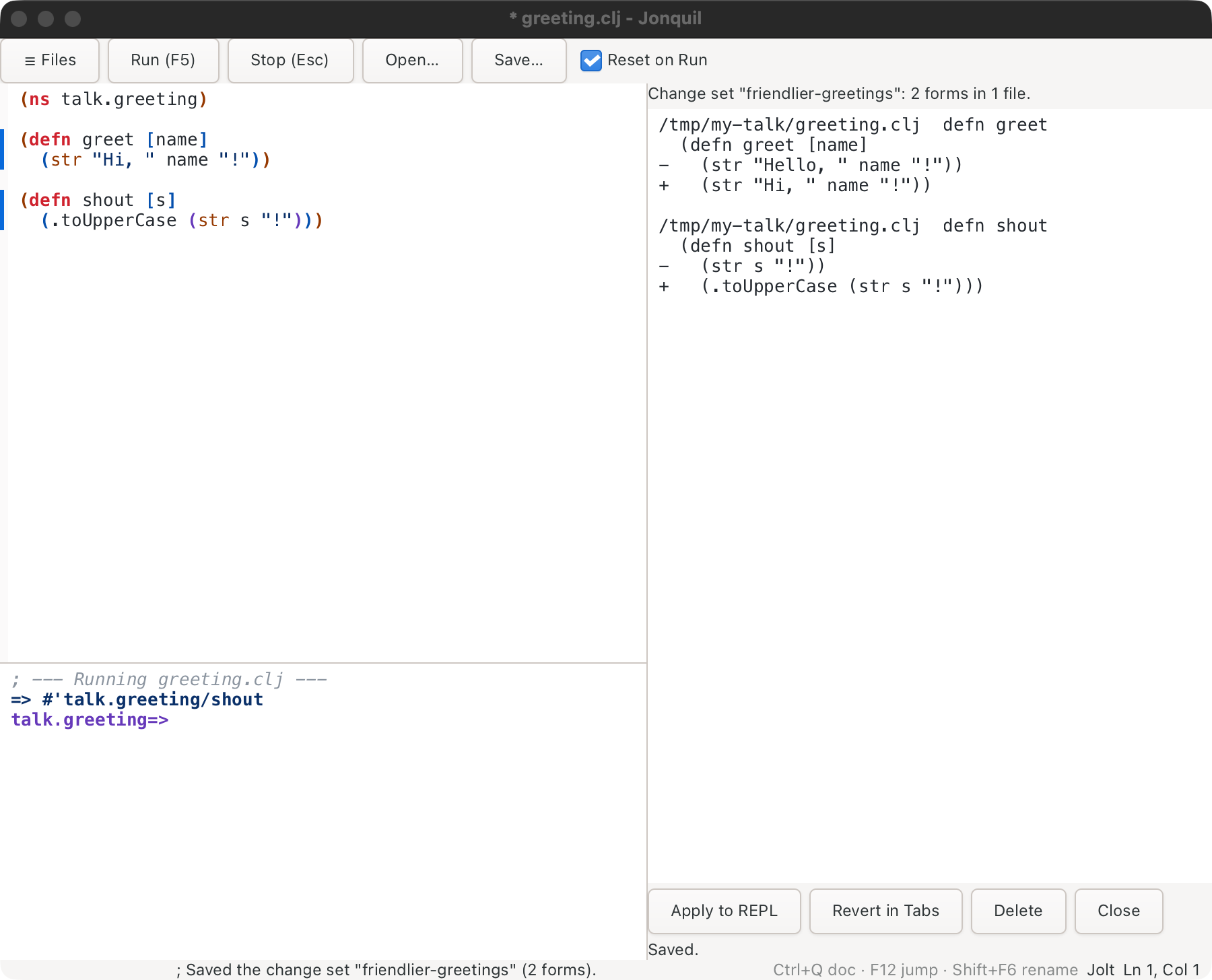
Change Sets in the palette lists the project's kept sets, each with its form count and, for an agent's, who proposed it. Opening one shows its diffs and three buttons:
- Apply to REPL sends each form in order, evaluated in the namespace its file's
nsform names, while the console's prompt stays in the namespace it was in. Every form is echoed and its result lands in the console. The first form that ends with an error stops the rest, and the console names it. In the in-process session and the Jolt child, a namespace that isn't loaded stops the apply with "my.app isn't loaded: Run its file first" (the child is asked once, before anything is sent). A runtime that can't evaluate in another namespace (JVM Clojure over nREPL, ClojureScript) refuses a file that has annsform instead of sending its forms to the wrong place. Apply doesn't mark the forms as run. - Revert in Tabs puts each form's last-run text back in its open tab (it opens the file when no tab shows it) as one undo step per tab. A form is found by its first two elements and its place among forms that share them, as in the one-form compare. One that is gone, is new since the last Run, or already reads as it did is skipped and named in the console, and so is one you have edited since you made the set (its text no longer matches what the set holds). An agent's set has no Revert button, since its forms were never in your tabs.
- Delete removes the set.
Sets are plain EDN files in change-sets/<folder>-<hash>/ beside the settings file, one per set, so they survive a restart and stay out of the project's tree. A set that isn't valid EDN, or doesn't have the shape of one, is listed as broken, can only be deleted, and is never applied. Saving under a name that exists replaces that set. Sets are written to a temporary file and moved into place, and a file over 1 MB is listed as broken without being read.
An agent can propose a set with jonquil_change_set_propose (see MCP). It lands in the same list, marked as proposed by a client calling itself by the name the client gave, and only you can apply or delete it.
Timing a form
Time the form at the caret (about a second), in the palette, runs that form over and over in batches for about a second, each batch against the same number of empty calls, then prints one line in the console: ; Time: 12.3 ns per call (± 0.4 ns over 10 batches of 1048576; an empty call's 1.1 ns taken off). A slow form still stops near the second, after at least 3 batches, and one slower than the whole second is timed once. A form too fast to tell apart from an empty call says so instead: a time counts only when it is larger than both spreads added together and at least 5% of an empty call. A lazy form is timed as building the sequence, not walking it, so wrap it in doall to time the work.
The form runs thousands of times, often millions, so time only code without side effects. A form that writes a file, swaps an atom, prints or calls a server does that on every run. So Jonquil asks before it starts, and the alert says why. Time It, Don't Ask Again stops the question until the window closes, and the console still repeats the warning each time timing starts.
It runs in the window's own runtime, so it times the code where it really runs: Jolt, JVM Clojure, or another nREPL server that has System/nanoTime, such as babashka's (a Basilisp server answers with an error). ClojureScript, ClojureDart and jank say timing needs Jolt or JVM Clojure.
Saving the world
Save World writes your session's data to a file, and Restore World brings it back: the values of your vars, so an atom you filled from a slow source, or the rows you built up at the prompt, survive closing Jonquil or an experiment that went wrong. It's Jolt only, in process or in the Jolt child, through Jolt's jolt.image.
Each project keeps your last 10 saves, beside Jonquil's settings rather than in the project, so they never land in git. The project is the window's folder; a window with no folder shares one history with every other. Before either restore command runs, the data you have now is saved first, and up to 10 of those are kept apart from yours, so restoring never pushes out a save you made. Restore World brings back the newest save you made. Restore an Earlier World lists them all in the palette ("Restore World saved 12 minutes ago (3 vars)", or "saved before a restore, ...") to pick one, which is how you undo a restore you didn't mean. What the save before a restore could only keep as a placeholder, an open file say, is named in the console, since undoing the restore can't bring that back either.
Which namespaces a world holds depends on where Jolt runs. In process, it's user and the namespaces your Runs and the prompt created, not the libraries they required, and never Jonquil's own. In the Jolt child, it's user and every namespace loaded after the child started, libraries your code required included, but not one a user.clj loaded at startup, and never a namespace named clojure.*, jolt.*, jonquil.* or nrepl.*. A library var holding something that can't be written stops the save the same as one of yours does. Before writing, Save World checks each var: something that can't be written as it is, such as an open file or a future that hasn't finished, is saved as a placeholder, and the console names each one. If a var holds something that can't be written at all, nothing is saved and the console names it. Restore World names the placeholders it brought back, which you replace yourself.
A world is data, not code. Functions aren't saved, since Run defines them, so restoring doesn't bring back code you've changed since, and a var you defined after the save keeps its value. A var that held data when you saved and that you've since redefined as a function gets the data back, so Run its code again after restoring. To roll back an experiment cleanly, put the code back first (with git, say), Run it, then restore. And a world reads back only on the Chez Scheme runtime it was saved on, so a Jolt upgrade that changes it can leave Restore World unable to read an old one: save again.
Last session's replay
Jonquil records what each project evaluated, so that next time you can look at it and run it again. When you open a project that has a record from before, the console offers it: ; Last session (Jolt, 14 hours ago): 2 files, 31 definitions, 4 other forms. Open last session's replay from the palette to review it. If the record was made in another dialect than the window's, the line adds which one. Open Folder gets the same offer for the new folder. Open last session's replay in the palette puts a script in a new Untitled tab, and nothing runs until you press Run. Times are relative ("from 3 days ago to 14 hours ago"), not clock times.
What gets recorded:
- A Run of a saved file records the file. Run Form, Run Selection and Run Changed in a saved file record their forms with that file as their source, and the replay drops those forms when it loads the file.
- A Run of an Untitled tab and every console entry record each top-level form with its namespace.
(load-file "/abs/path")counts as a file. - An evaluation that threw records nothing.
- What an agent evaluates through MCP isn't recorded. The code it sends does land in the Up/Down history, and that history is saved with the record.
The script has three groups. Files come first, as load-file lines that load them as they are on disk now. Definitions follow, each once at its last position, with setup forms such as ns and require ahead of them, grouped by namespace. Every other form comes last behind #_, so it's skipped until you remove the #_. A setup form you ran again later (a second (refer 'lib)) keeps its first position, which is a known limit.
The replay tab counts as typed at the console, so its Run never resets earlier definitions. A second Open selects the replay tab that's already open for the same folder, and after Open Folder it opens a new tab for the new folder. Running the replay records its files and definitions again, and the skipped forms still in the tab behind #_ come back in the next replay, with their old namespace and time. They're matched by their exact text. A skipped form you delete from the tab before Run, or reindent or edit, is dropped, and one whose #_ you take off runs and is recorded like any other form. Forget last session clears everything, skipped forms included.
The record keeps growing across days until you run the replay or choose Forget last session in the palette. It's one file per project in replays/, beside settings.edn, kept to 2,000 evaluations and 500 history entries, and written owner-only (0600, in a 0700 folder). It's plain text and holds whatever you typed, secrets included. Two Jonquil processes on one project aren't guarded against each other, so the later write wins.
Replay runs in Jolt (in process and in the child) and JVM Clojure. The other dialects still record, and their Up/Down history comes back, but the console says replay isn't available for them yet. That history also survives a dialect switch. :remember-session? false in settings.edn turns off the recording, the offer, loading the history and Forget, and leaves any file already written alone. A project can decide for itself with :remember-session? in its .jonquil.edn: false keeps that project off disk while the others record, and true records it even with the setting off.
The REPL prompt, and how it differs from Run
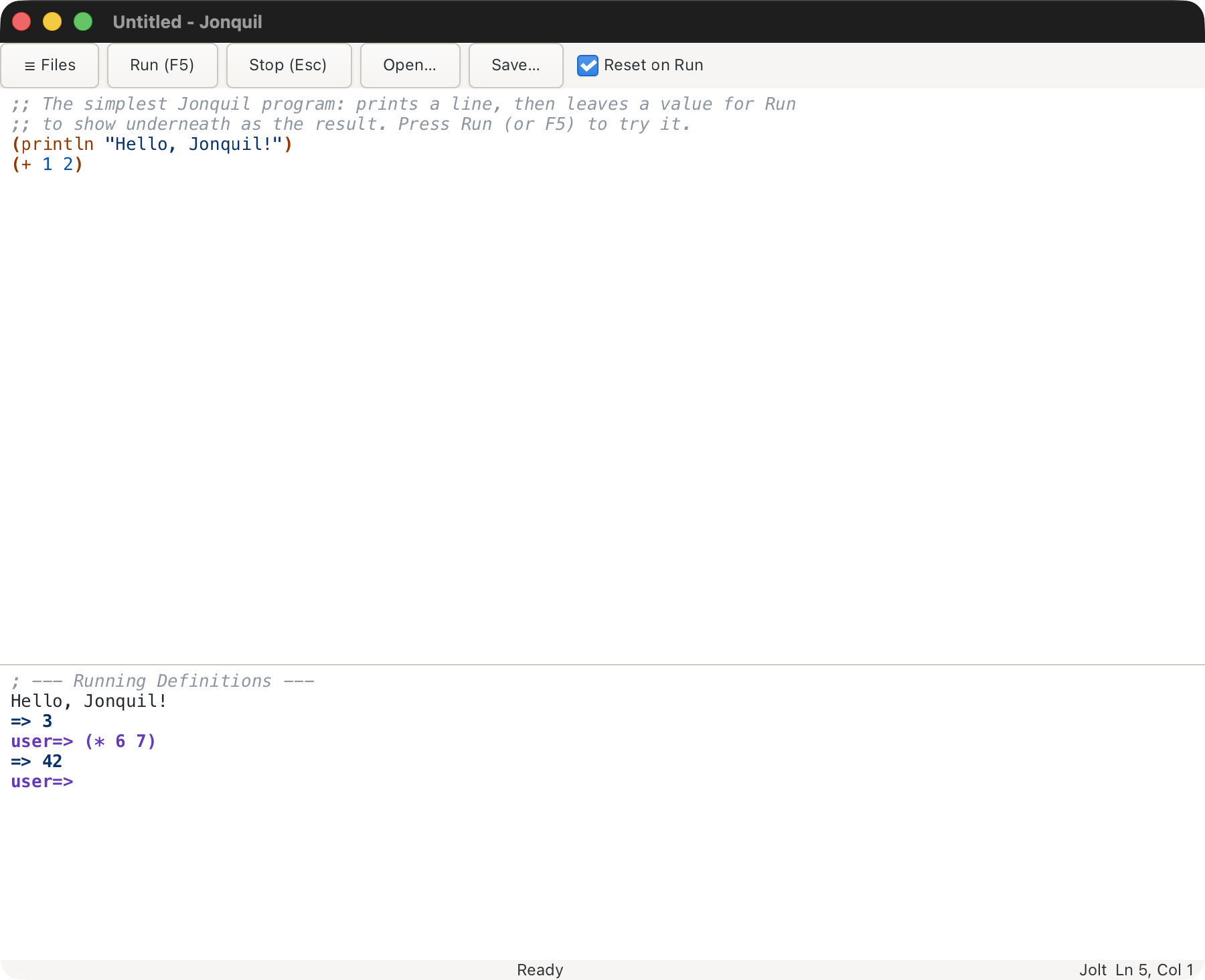
The prompt evaluates one expression at a time and shows its namespace (user=> , or demo.core=> after an (ns demo.core)).
- Run evaluates the whole pane and, by default, clears earlier definitions first. A REPL entry evaluates only what you typed and builds on whatever exists, including what the last Run left. So Run a program, then call its functions at the prompt.
doc,find-doc,apropos,dir,pprintandppare available without arequire. A file starting with its ownnsform requires them itself.*1,*2,*3and*ework. Out of process, a Stop that restarts Jolt clears them along with every definition.- Up and Down recall history from the first or last line of the entry; on a multi-line entry they move the caret.
- Submitting while a program is running (and not reading input) holds your text and reminds you to press Stop.
read-line and stdin
read-line and stdin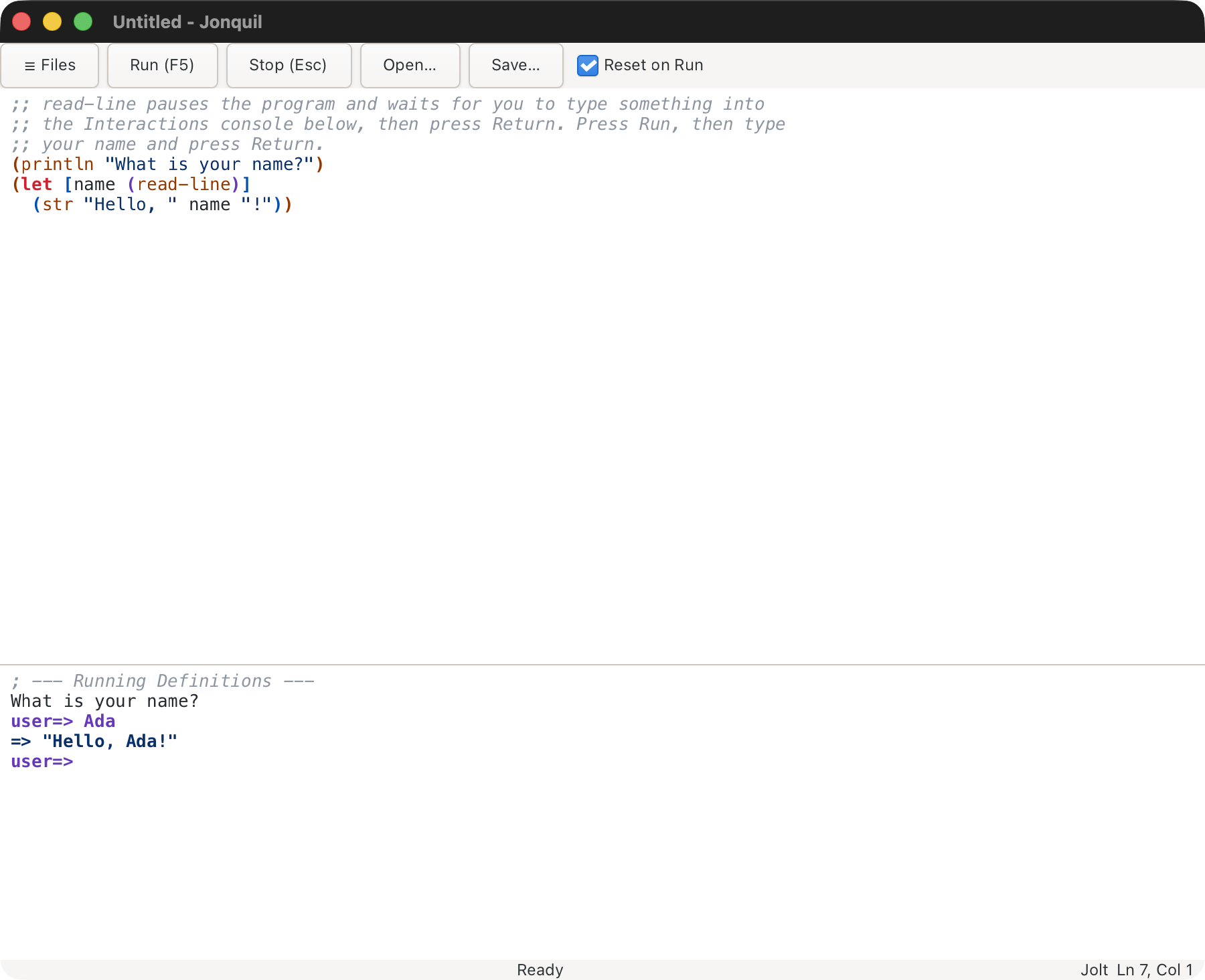
When a program calls read-line, the status reads Waiting for input and what you type at the prompt goes to the program, not the evaluator. Cmd/Ctrl+D sends end-of-input. docs/demos/greet.clj shows it.
Stdin works with Jolt (in or out of process), JVM Clojure (see JVM Clojure) and launched ClojureScript on node; ClojureDart has none. In process, Cmd/Ctrl+D closes input for the rest of the run. Elsewhere it ends only the waiting read. See Running Jolt out of process.
Text you typed while the program was running
Unsent text stays at the prompt after the program finishes. The next Return asks you to press Return again to evaluate it; edit the text and Return behaves normally. Nothing is deleted.
Stop
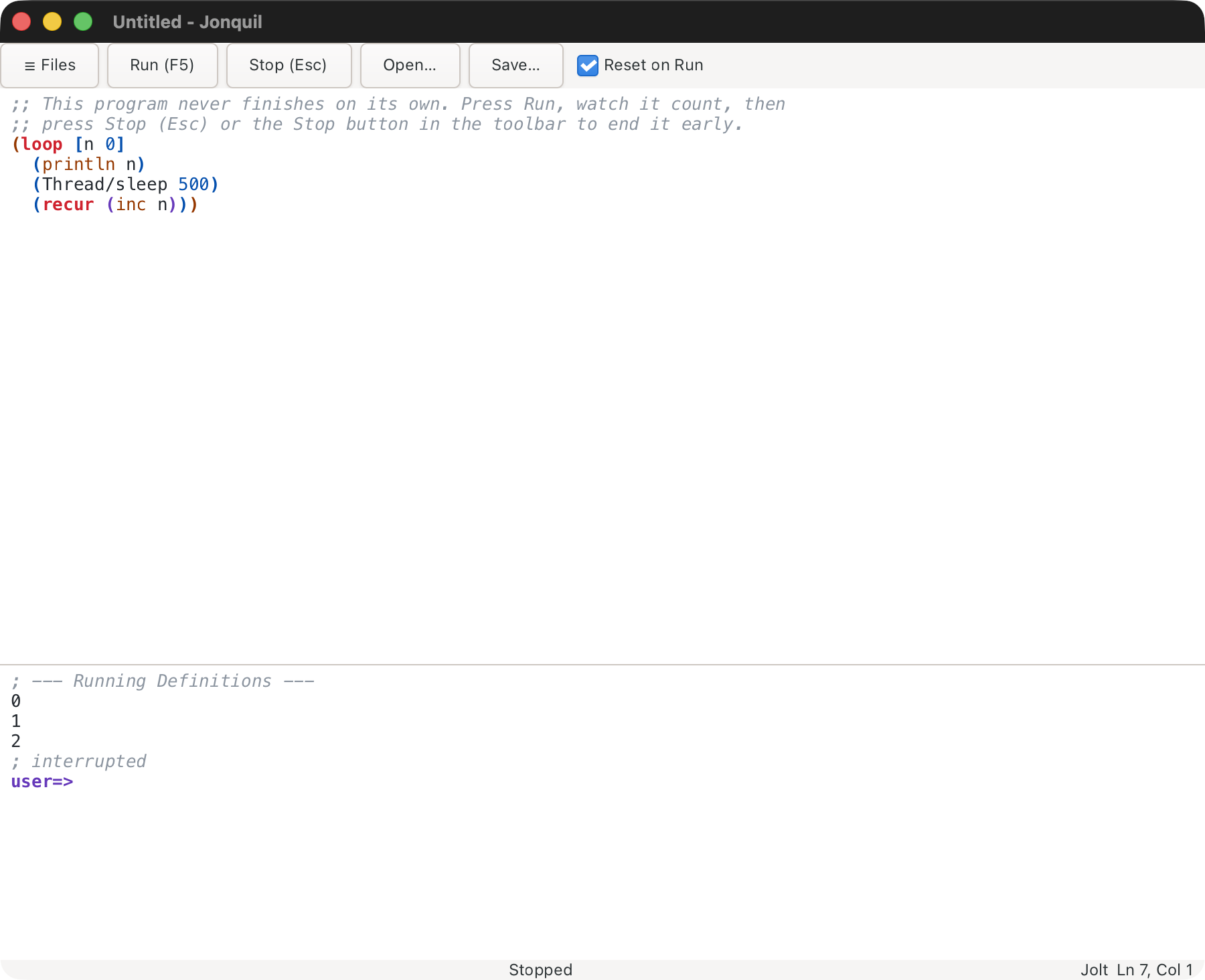
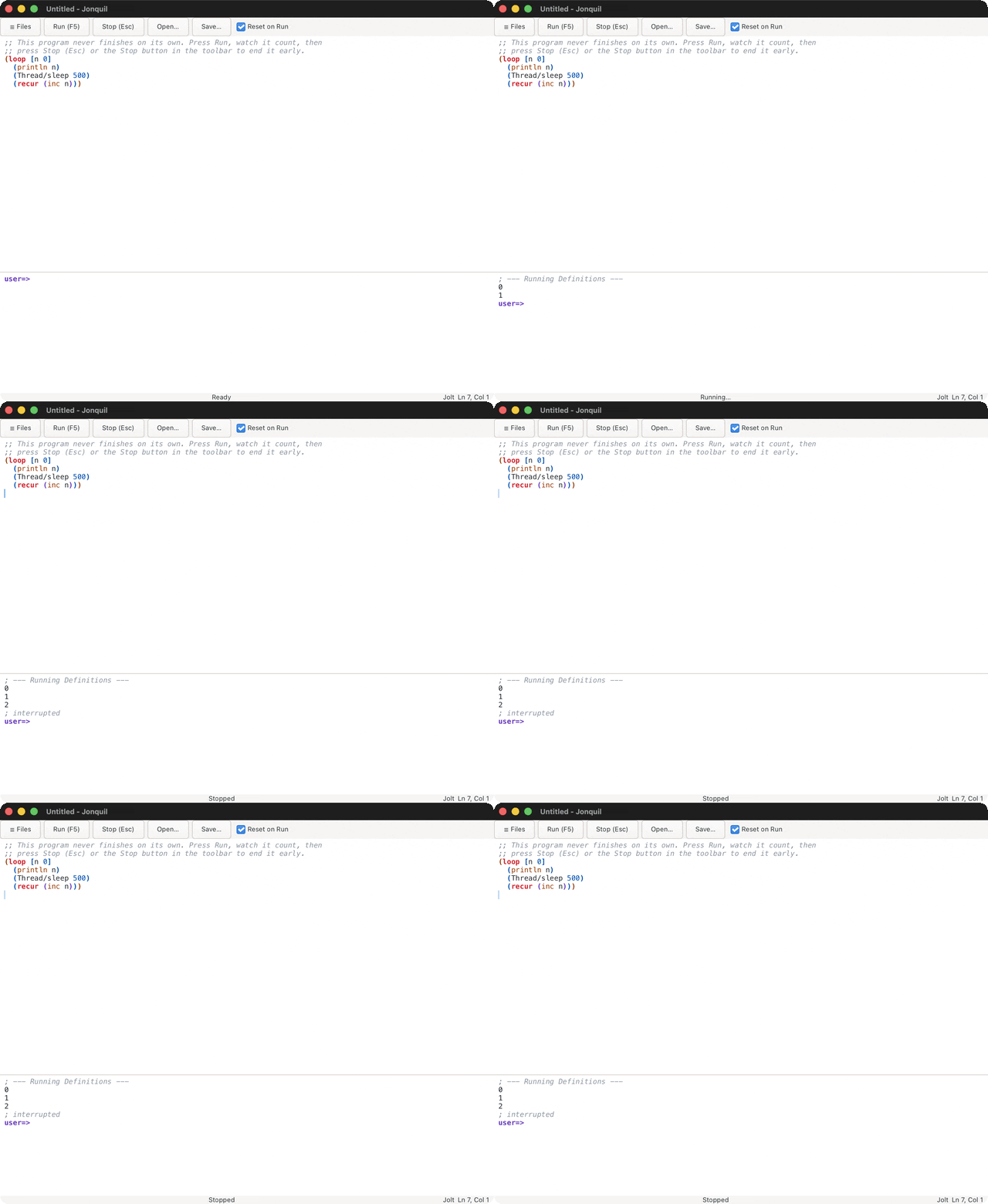
Stop or Esc interrupts a loop or a blocked read-line, prints ; interrupted, and the window never freezes. Esc only acts while something runs. Some out-of-process runtimes restart instead of interrupting (see Dialects and runtimes). docs/demos/forever.clj demonstrates it.
Reset on Run, versus accumulate
Checked (the default), each Run first removes the namespaces earlier Runs and REPL entries created, then evaluates fresh. Required libraries stay loaded. Unchecked, Runs build on each other, as the REPL does.
For runtimes you started yourself (ClojureDart, JVM Clojure, shadow-cljs, an nREPL server) the box is greyed out, because Jonquil can't clear a process it doesn't own. Launched ClojureScript starts unticked; ticking it restarts ClojureScript on each Run, which takes a few seconds. docs/demos/reset.clj shows the difference.
The friendly unclosed-bracket message
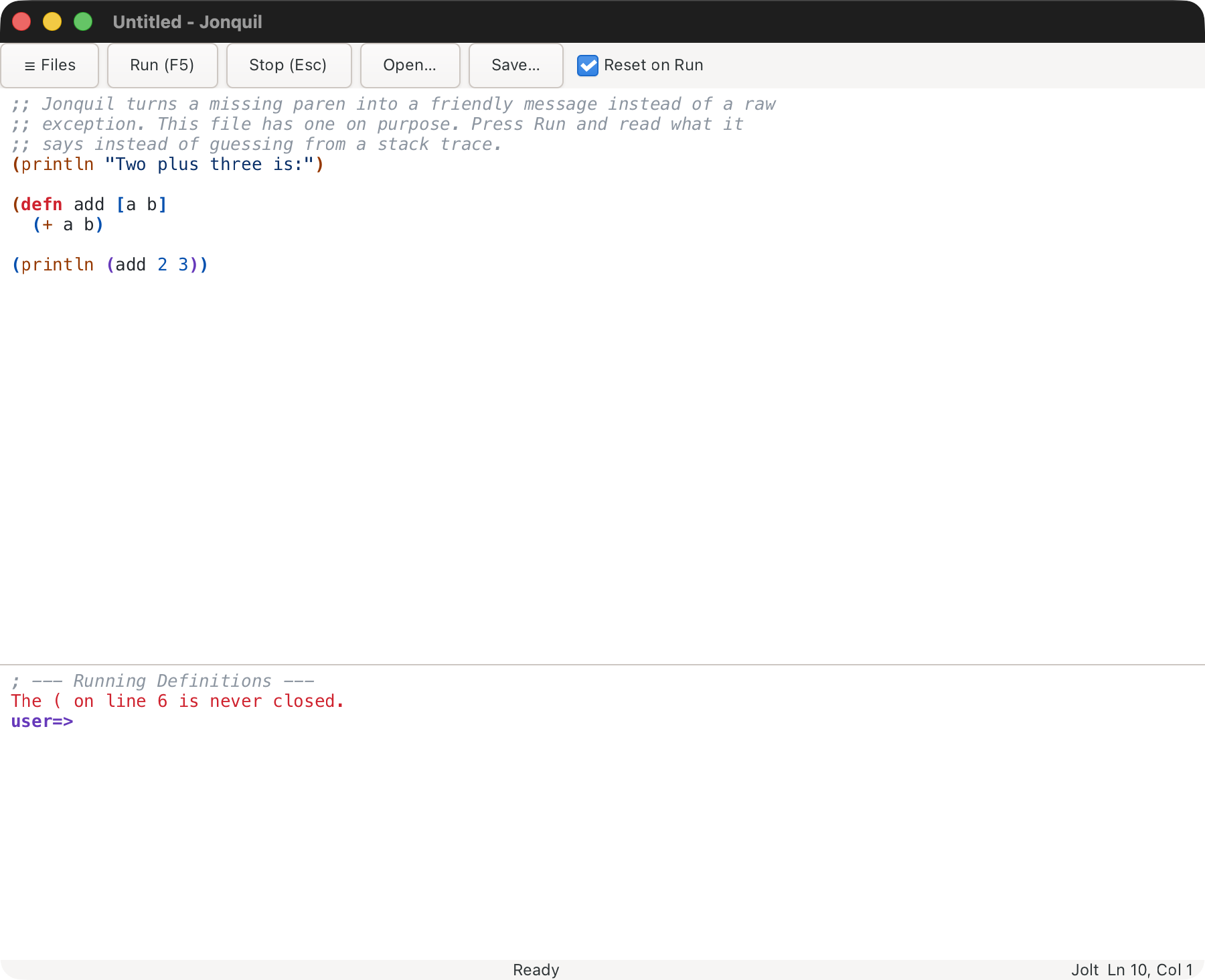
Before evaluating, Run names an unclosed bracket and its line ("The ( on line 6 is never closed.") or a stray closer ("The ) on line 1 has no matching opener."). Nothing runs. docs/demos/unbalanced.clj is broken on purpose.
Editing
- Typing
(,[,{or"inserts the closer or wraps a selection; typing the closer steps past it, and Backspace removes an empty pair. - Tab and Shift+Tab indent and unindent. Cmd/Ctrl+/ or Cmd/Ctrl+; toggles line comments.
- Cmd/Ctrl+Shift+F formats the file; Cmd+Option+F (Ctrl+Alt+F on Linux) formats the selection or line. A format is one undo step.
- Undo is Cmd/Ctrl+Z; redo is Cmd/Ctrl+Shift+Z or Cmd/Ctrl+Y.
- F6 switches focus between editor and console. Cmd/Ctrl+L clears the console; Cmd/Ctrl+Shift+L clears only the last entry.
- Cmd/Ctrl+= , - and 0 zoom in, out and reset.
All keys are in Keys.
Parinfer
Parinfer keeps brackets and indentation in step as you type. It's off by default. Cmd/Ctrl+Option(Alt)+P cycles the mode, the palette has one command per mode, and the choice is saved in settings.edn. The status bar shows the label whenever a mode is on for the tab you're in, or the tab's project overrides your setting either way.
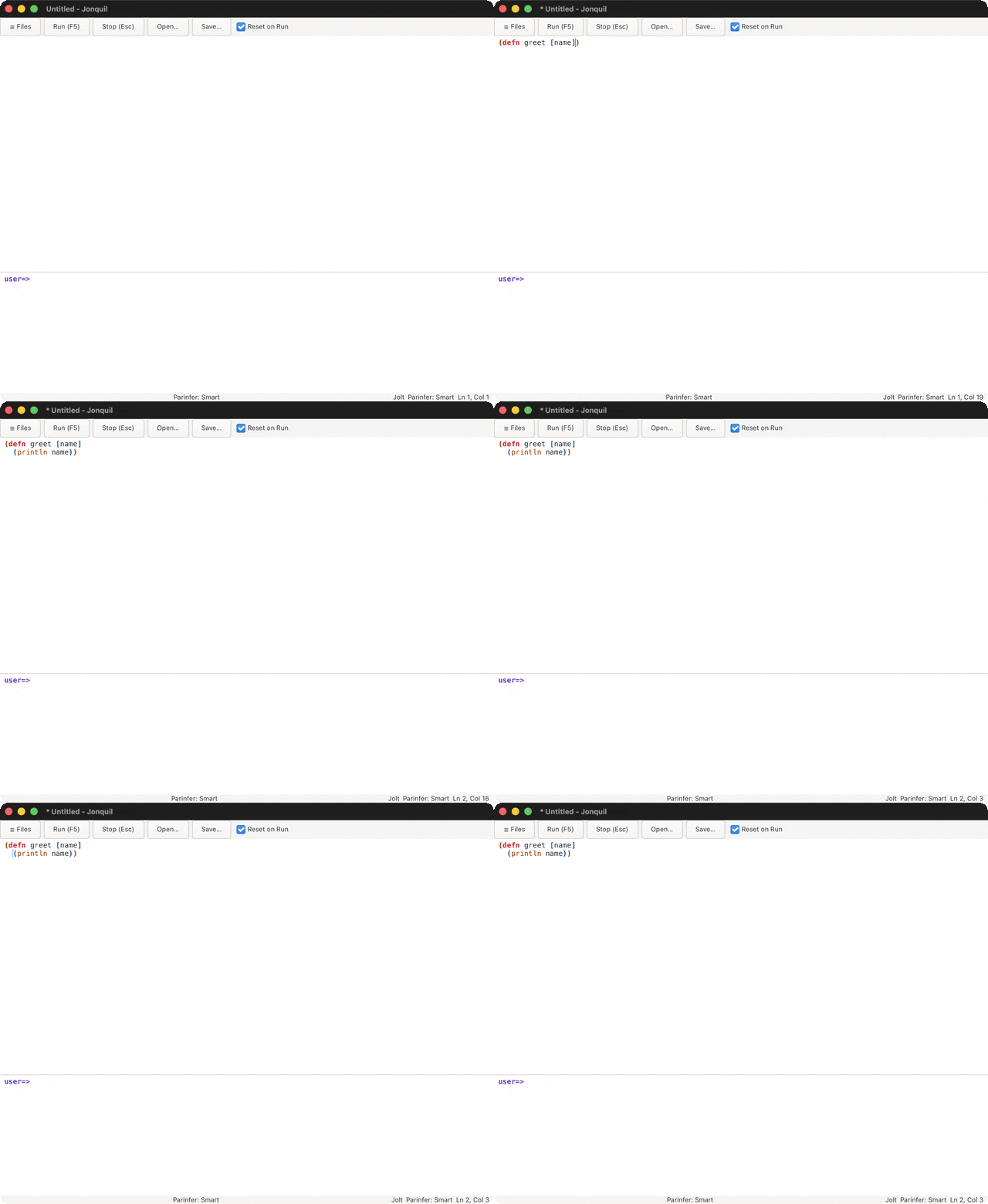
- Smart (the usual choice) balances brackets from your indentation: typing
(closes it, and dedenting a line moves its closer up. - Indent is Smart without the edit tracking that protects the form you're typing in.
- Paren goes the other way: it re-indents from the brackets you type.
A project can choose for its own files: .jonquil.edn {:parinfer :smart} turns Parinfer on for that project's tabs, and {:parinfer :off} keeps them off even when your setting is on. The label then says Parinfer: Smart (project), and the key and palette keep changing the global setting. Like the other .jonquil.edn keys, it applies to tabs you open after editing the file.
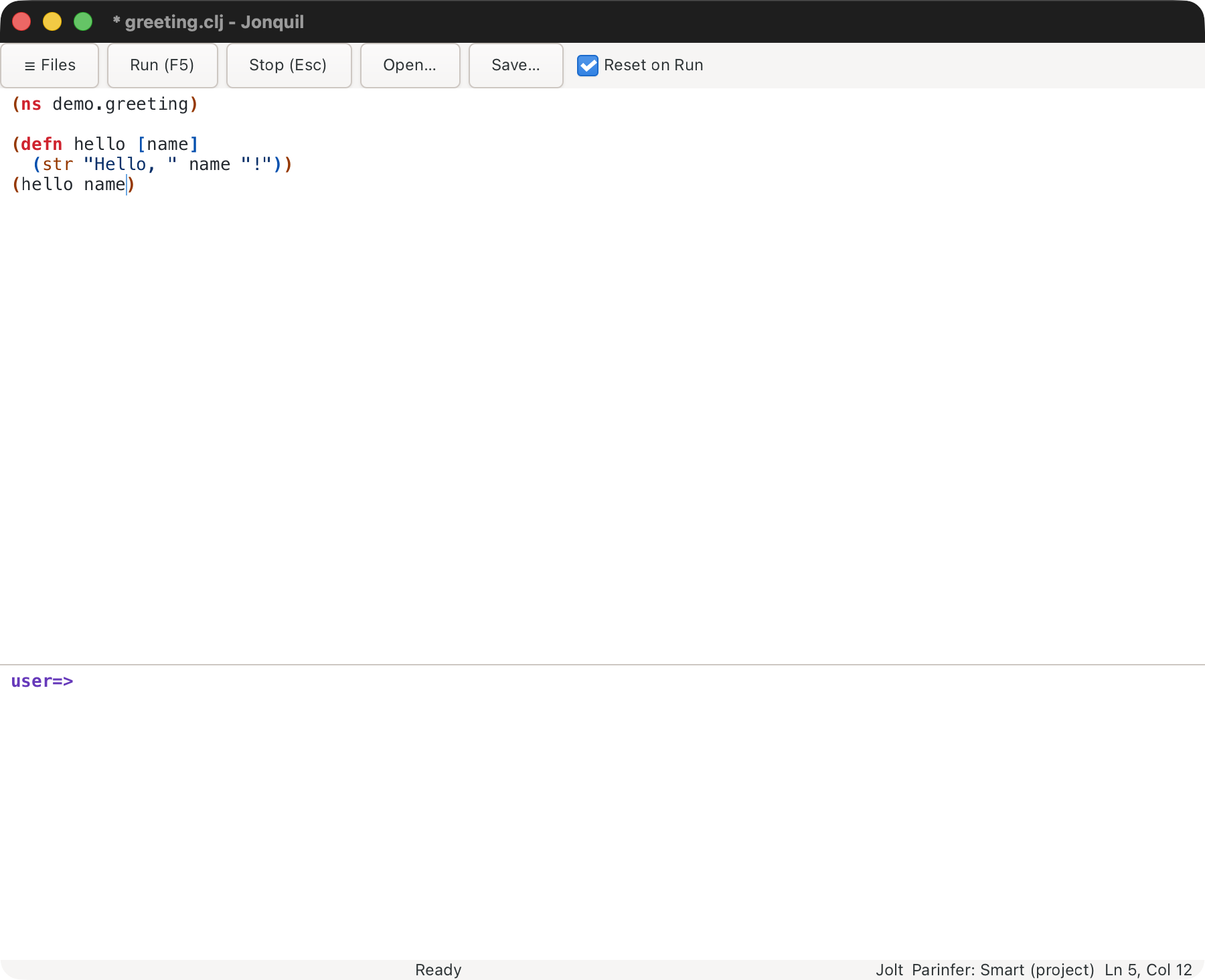
Parinfer works on the top-level form you're editing, never the whole file. Opening a file changes nothing. A form whose indentation disagrees with its brackets is re-indented the first time you edit it, as part of that edit, so one undo reverts your keystroke and the fix together. In Smart and Indent modes, bracket auto-close and pair Backspace step aside, since Parinfer balances for you (the quote keeps pairing, and Backspace still removes an empty pair of quotes); in an edited form, tabs become two spaces and line endings follow the form's first. Reloads, agent (MCP) edits, and forms over 300 lines are left alone; skipping a long form is named in the status bar.
Format All and Format Selection land exactly what they made, with no skip and no status note. Without a :format-style pin (below), while Parinfer is on the formatter's output takes Paren mode's indentation per touched top-level form as a last step, so the two styles agree and the next keystroke has nothing to re-indent: a second format changes nothing, and formatting again after an edit is whitespace-stable. On Jonquil's own sources the two styles disagreed on 80 of 2,421 forms before this pass, each a one-space shift on a wrapped line (measured 2026-10-29). With Parinfer off, a format is the formatter's output alone, unchanged.
Since the output depends on the mode, a repo whose people differ on it would see those lines flip between formats. A project can pin one style for everyone with .jonquil.edn {:format-style :paren-stable} (or :plain), which decides every format in that project's tabs whatever the mode. Pinning :plain while typing with Parinfer on re-accepts the first-edit re-indent the Paren-stable output exists to remove.
Find and replace
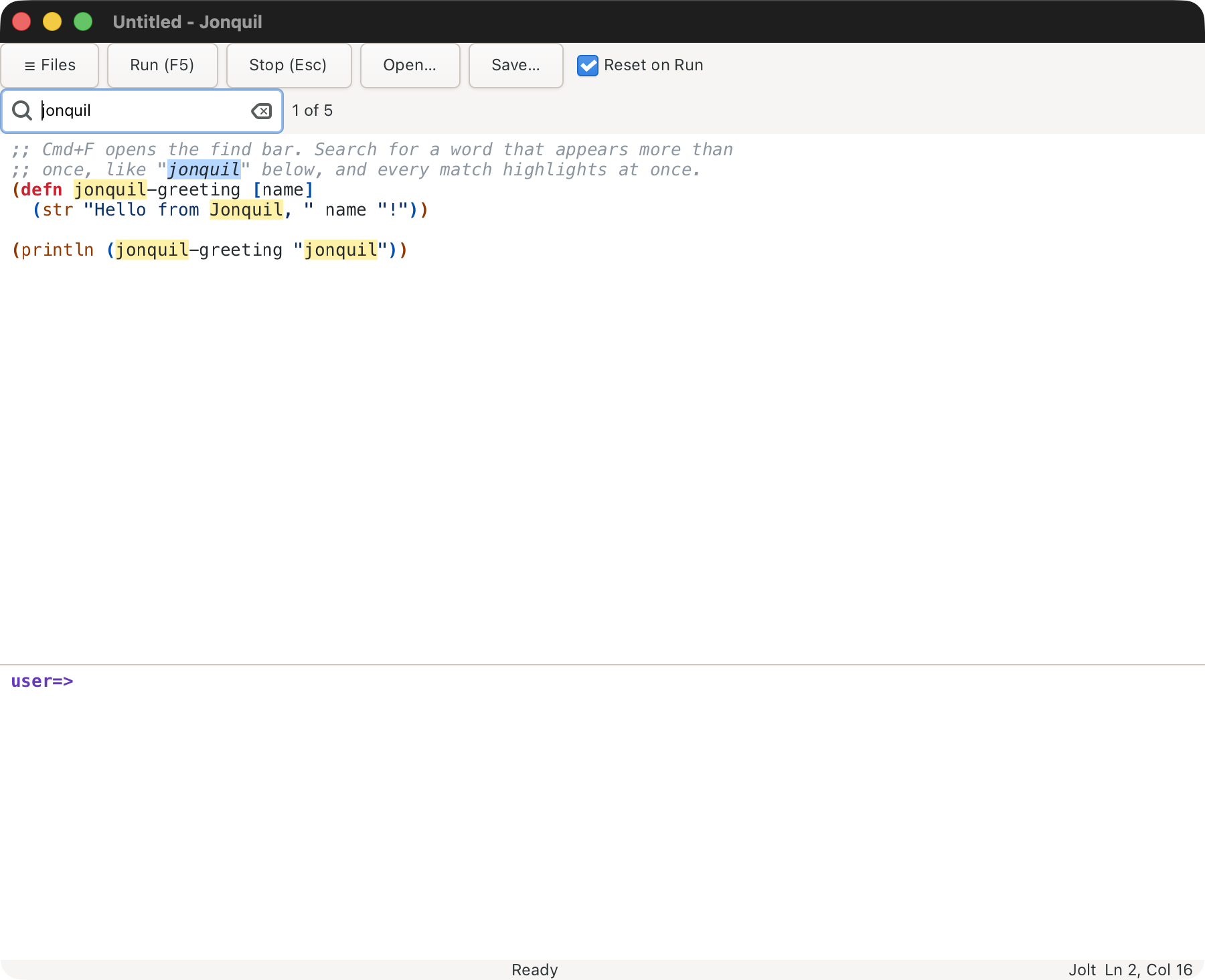
Cmd/Ctrl+F opens the find bar, Cmd/Ctrl+H adds the replace field. Matches highlight as you type, with a count ("2 of 5"). Return, F3 or Cmd/Ctrl+G goes to the next match, and the Shift variants go back. Replace and Replace All are each one undo step. Escape closes the bar only while it has focus; elsewhere it still stops a running program.
Unicode and IME
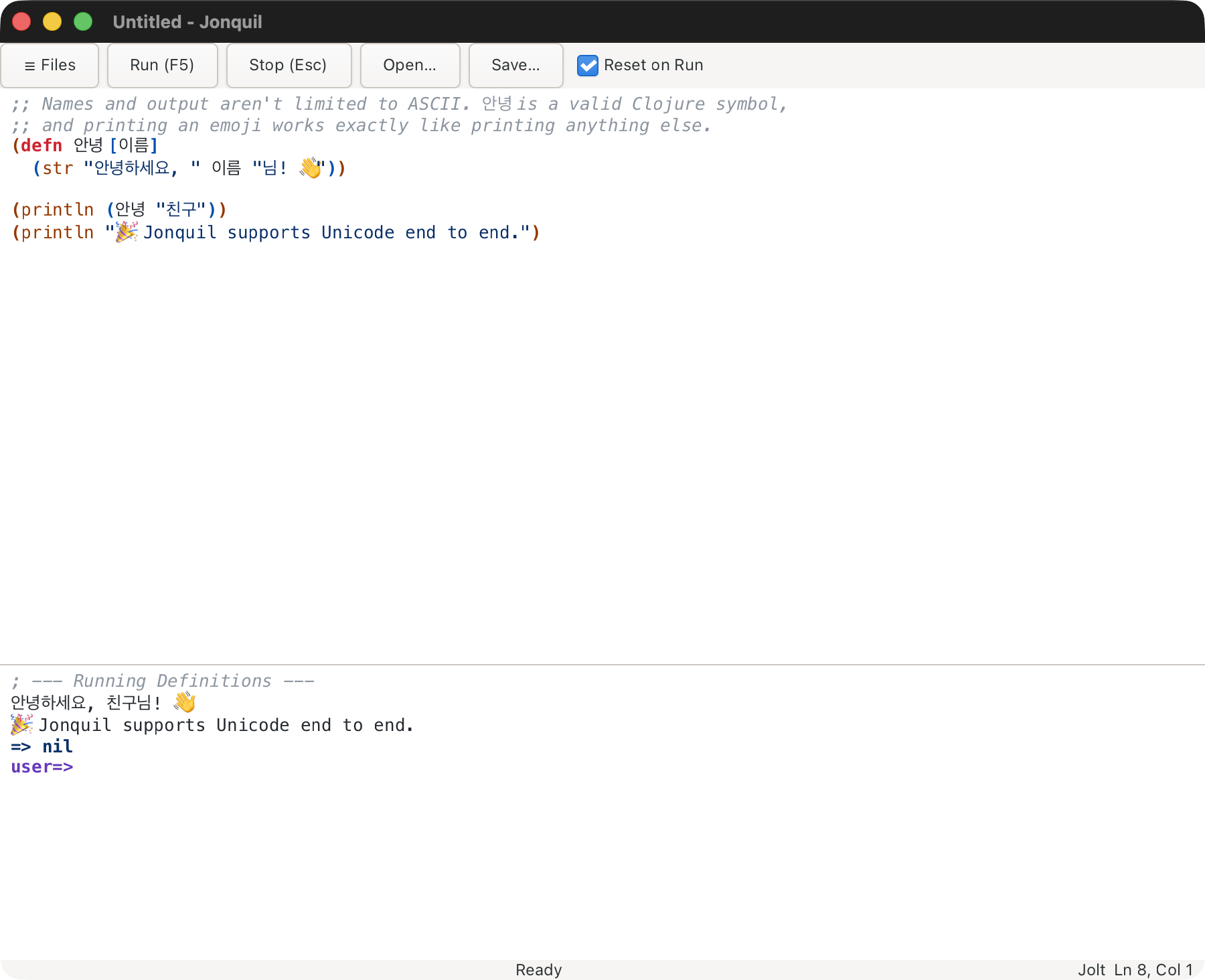
Names and output aren't limited to ASCII; Hangul, Thai and other composed scripts work in both panes. See docs/demos/unicode.clj.
Return during an input-method composition
Return while a syllable is still underlined commits it and inserts a plain newline, with no smart indent or evaluation. Press Return again for the normal behavior.
Themes
Cmd/Ctrl+Shift+M cycles light (the default), dark, solarized, navy and auto. The status bar shows the current one.
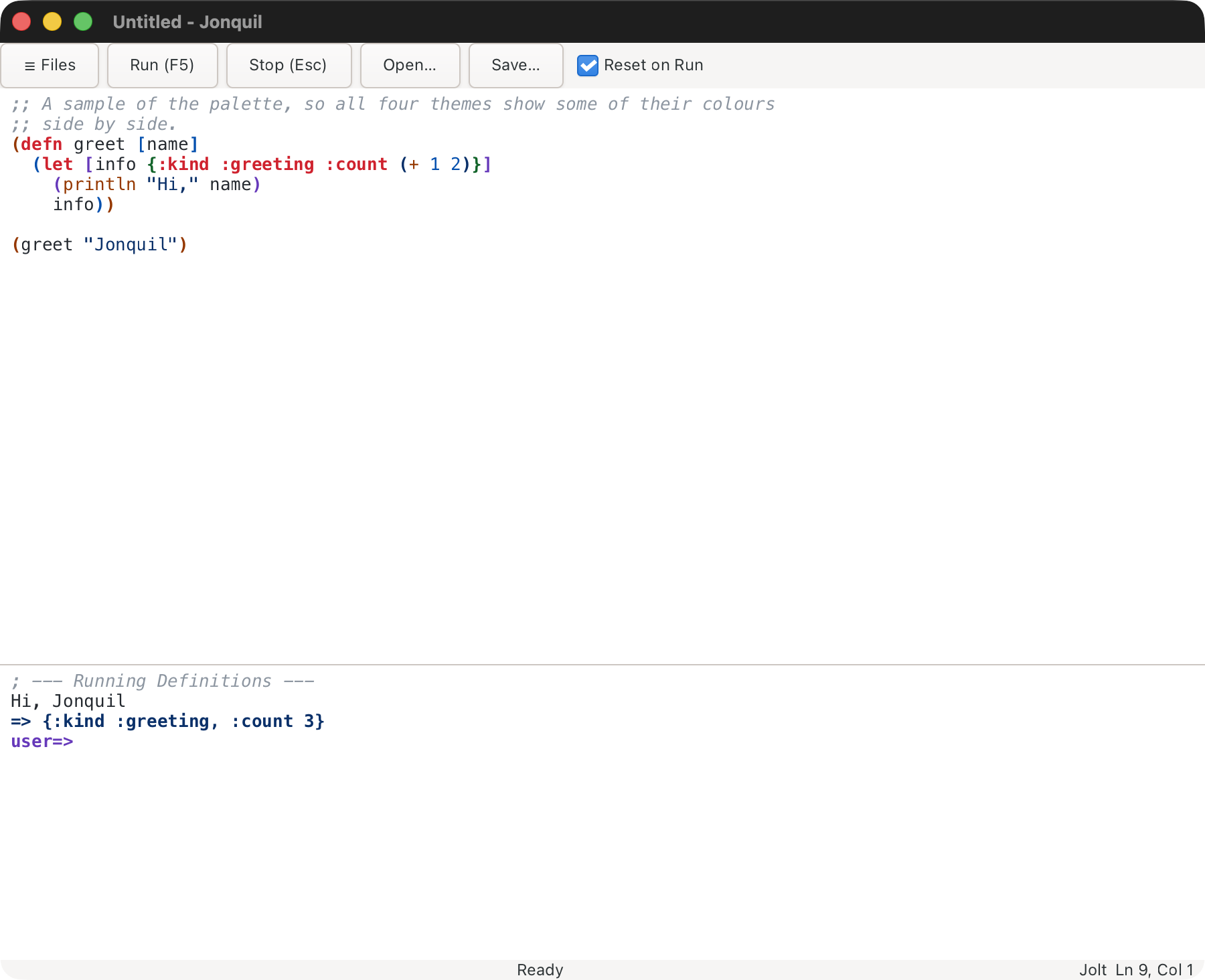
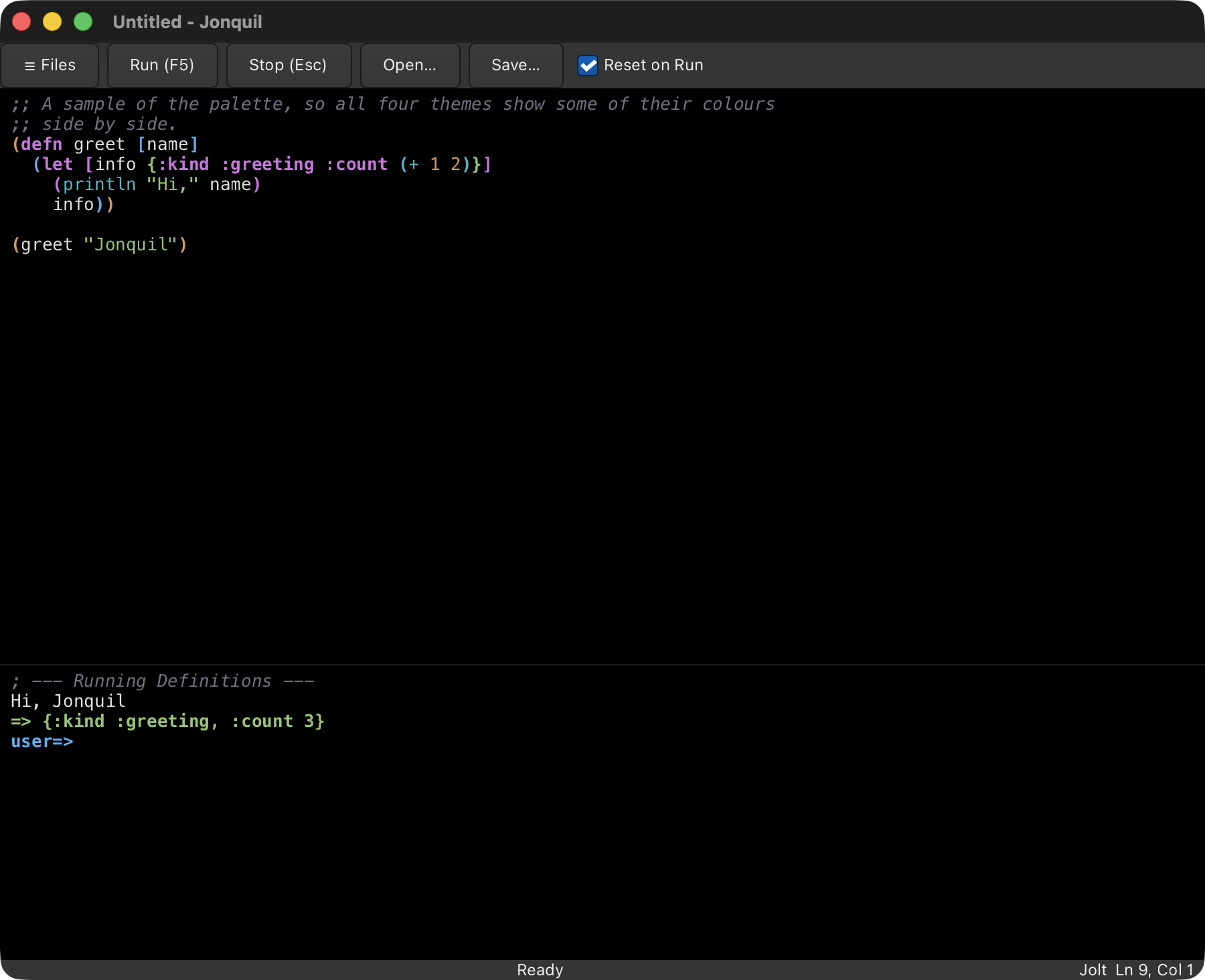
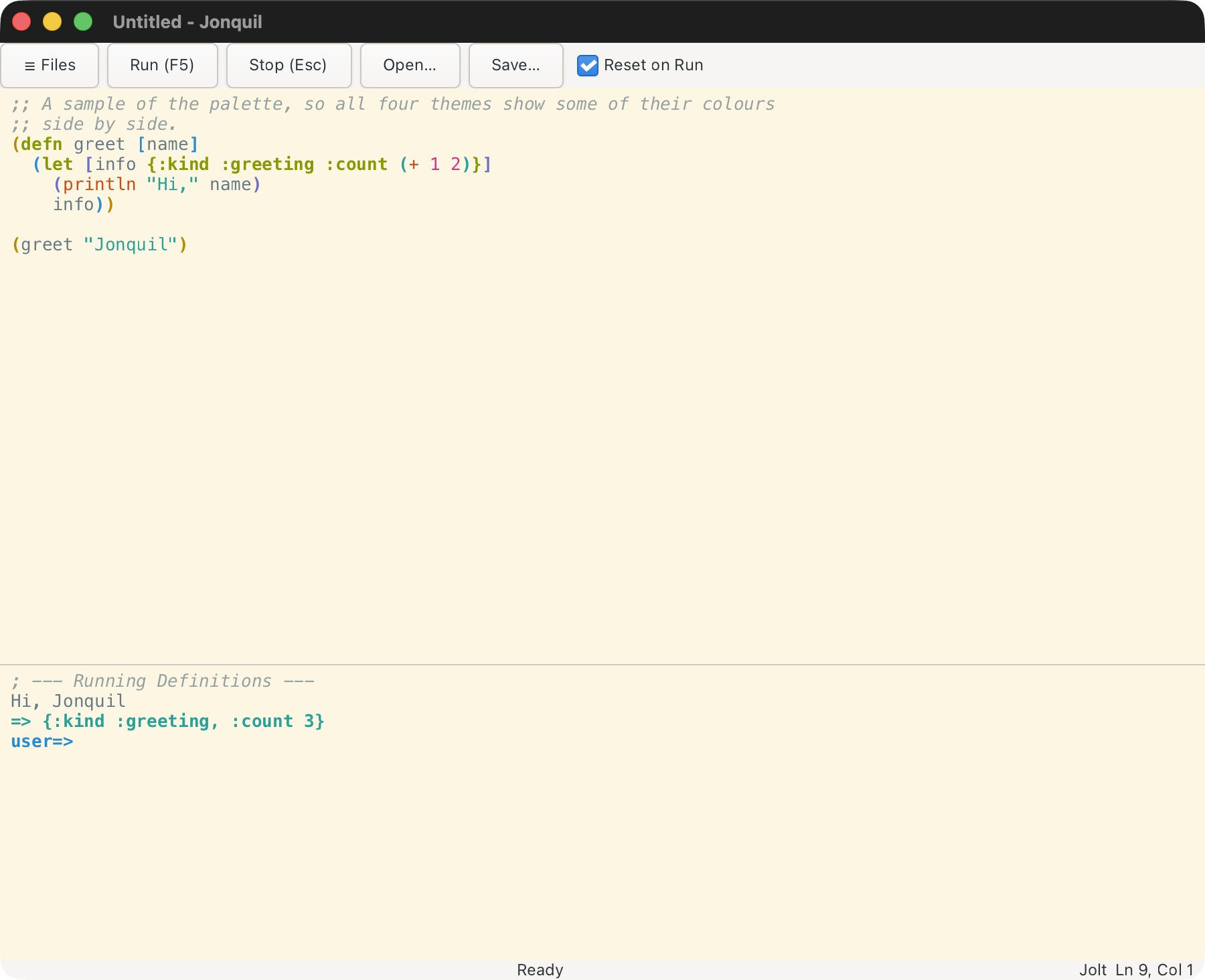
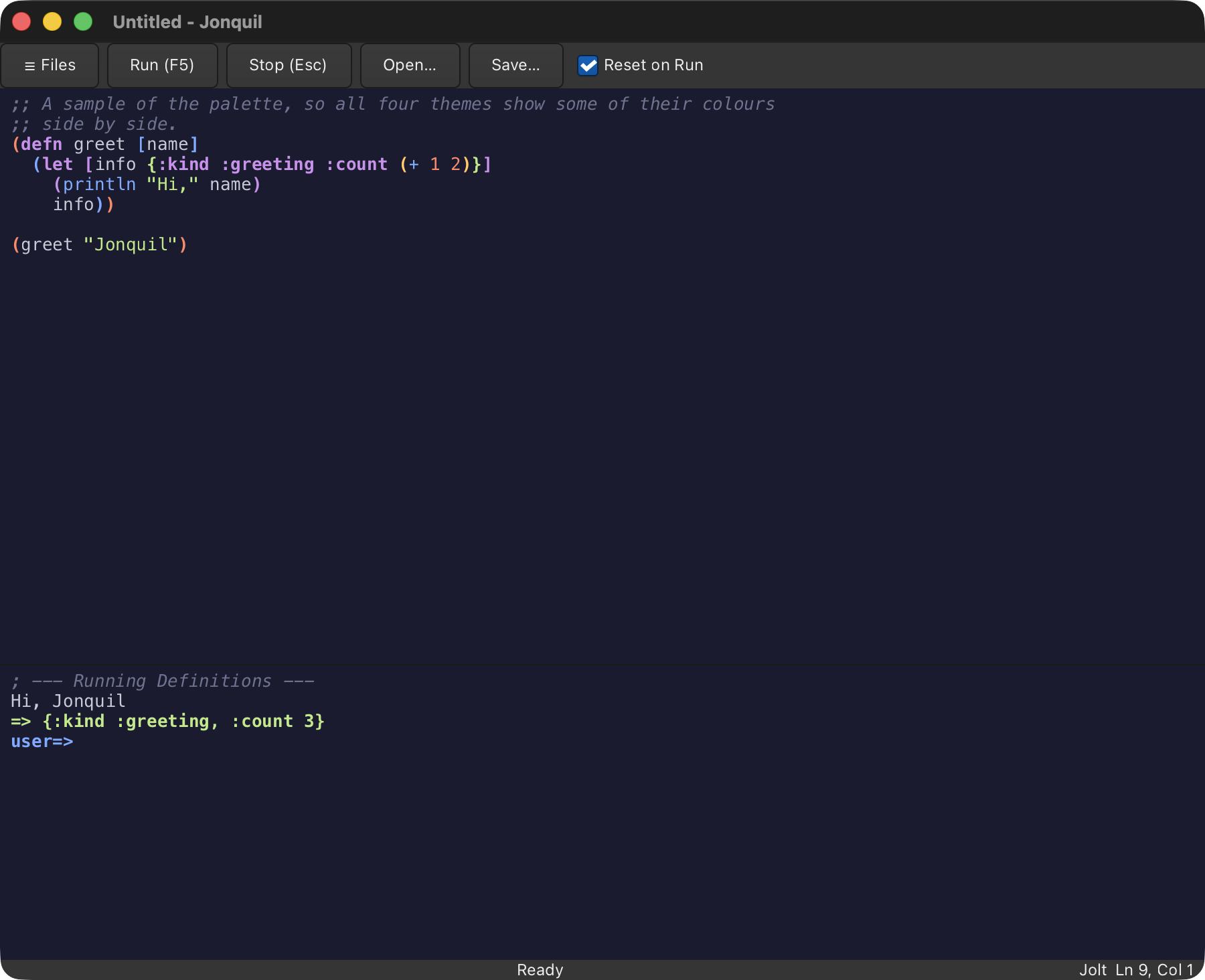
A theme recolours both panes and GTK's chrome. Auto follows the system's Light or Dark mode on macOS; elsewhere it shows light.
Where the choice is saved
The choice is saved to $XDG_CONFIG_HOME/jonquil/settings.edn (or ~/.config/jonquil/settings.edn) as {:theme :navy}, or {:theme :auto} for auto. A missing file starts in light silently; an unreadable file or an unknown theme also starts in light but says so once in the console. Delete the file to go back to light.
This page is docs/guide/using-jonquil.md in the Jonquil repository.