
Files and tabs
Opening and saving files, tabs, opening from Finder and the Dock, and the file tree.
Open and Save
- Cmd/Ctrl+O opens a file in a new tab. A fresh, empty Untitled tab is filled instead. A file that's already open just brings its tab forward.
- Cmd/Ctrl+S saves to the file's path, or opens a Save dialog if it has none. Cmd/Ctrl+Shift+S always opens the dialog.
- A file that isn't valid UTF-8 still opens: bad bytes show as �, the console warns, and the disk is untouched until you save.
- A file with a NUL byte in it doesn't open: the console names the line, and the file on disk is untouched. A NUL usually means a binary file, and GTK's text can't hold one, so opening it would silently cut everything after it.
Saves are atomic (a temporary file, then a rename), so a crash can't leave half a file. Saving through a symlink updates the file it points to.
When the file changes on disk
Jonquil checks each open file about every two seconds, so an agent editing files with its own tools, or a formatter, or git checkout, shows up in the tab. Once the change has held for one check, a tab with no unsaved edits reloads to the new text and keeps its caret. The reload is one undo step, so Cmd/Ctrl+Z right after it brings your old text back (the tab then reads unsaved). A tab with unsaved edits keeps them, and the new text on disk becomes what it was last saved as, so the tab stays unsaved and a Save writes your version over the one on disk. A file that now holds a NUL byte leaves the tab as it was, and a deleted or moved file leaves it alone too. Each of these gets a row in the Messages panel.
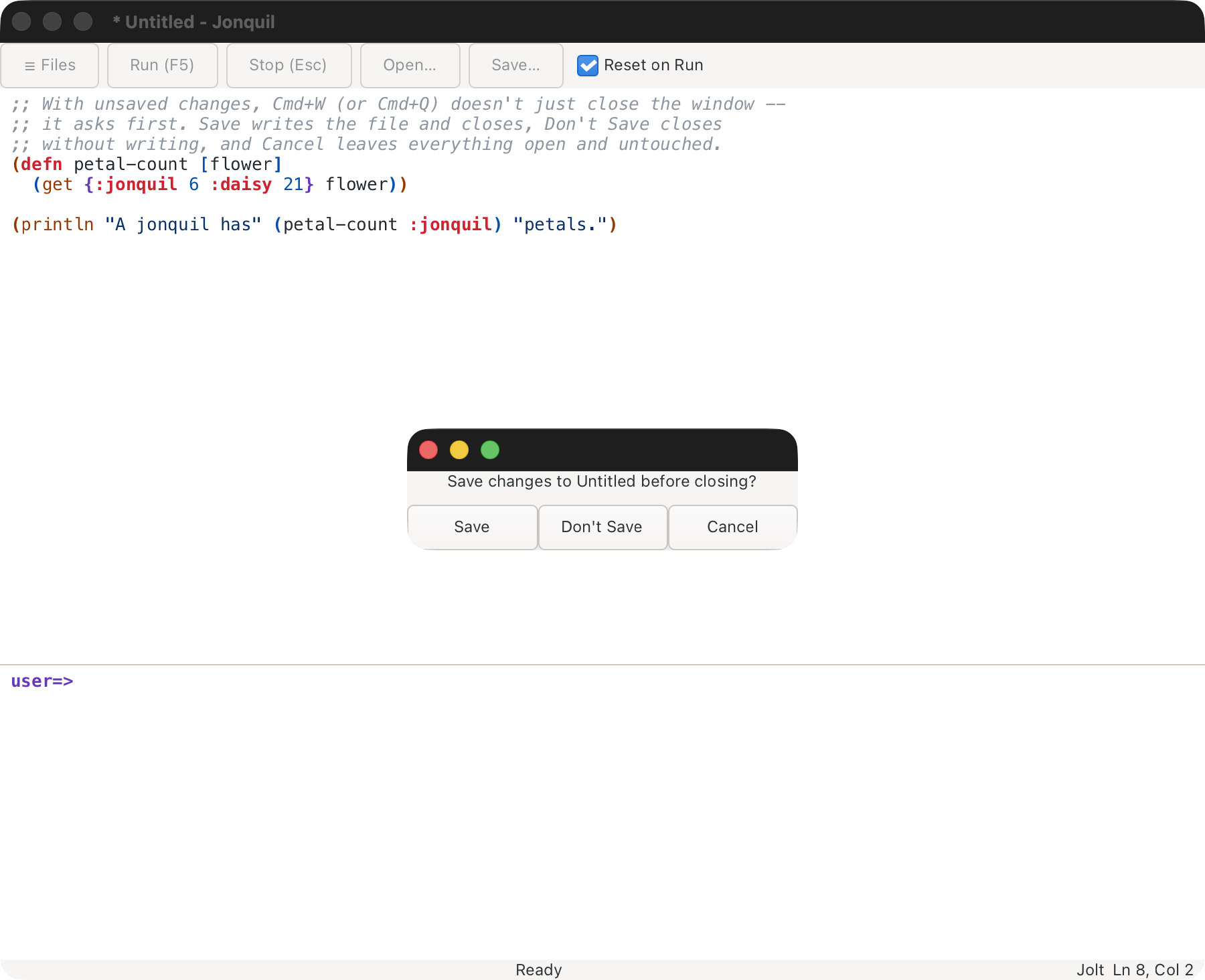
Closing with unsaved changes asks first, however you close (Cmd/Ctrl+W on the last tab, the window button, Cmd+Q, logging out): Save, Don't Save or Cancel. With several dirty tabs one prompt names them all, led by Save All. Cancel, or a failed save, leaves the window open with the unsaved tab in front.
Tabs
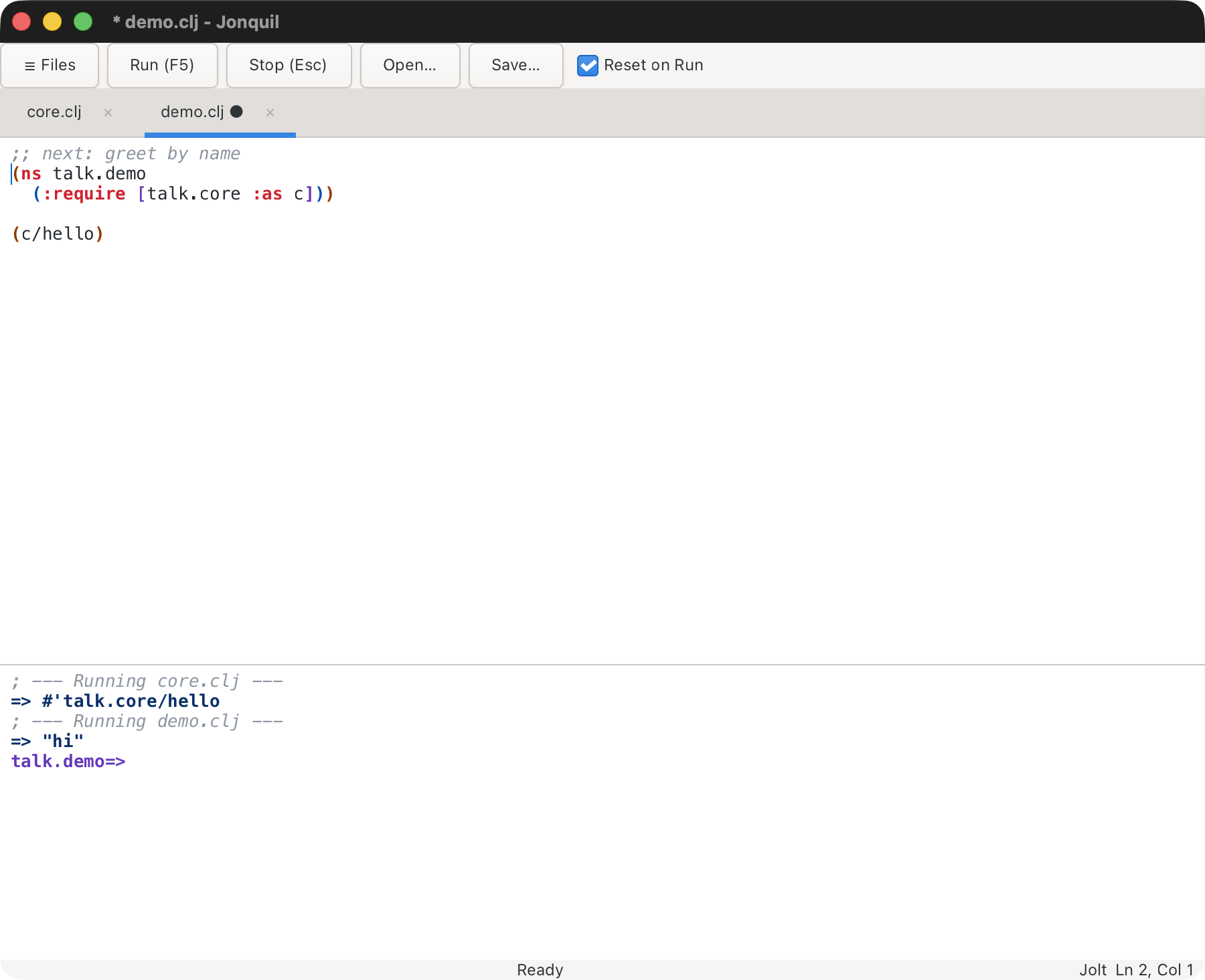
One window holds any number of files, one per tab. The tab strip appears once there are two. A dot marks unsaved changes, and same-named files show their folder (core.clj · talk).
- Cmd/Ctrl+T: new Untitled tab. Cmd/Ctrl+W or a tab's ×: close it.
- Cmd/Ctrl+Shift+] and Cmd/Ctrl+Shift+[: next and previous tab, wrapping.
- Cmd/Ctrl+1 to 8: jump to that tab; Cmd/Ctrl+9: the last.
- The command palette lists every other open tab as Switch to tab: name, the one you used last first; Go back to the tab used before flips between the last two.
All tabs share one evaluator and console, like a project REPL in CIDER or Calva, so demo.clj can call what core.clj defined.
Edge cases with several tabs
- Reset on Run clears only that tab's namespaces, plus prompt-created ones and
user. Rerunningcore.cljleavestalk.demoholding its old alias until you rerundemo.clj. - Every Run starts from a fresh
user, so two Untitled tabs without annsform overwrite each other. - A file from another project gets an editable tab, but Run, Run Selection, Run Form and Inspect Form refuse there. A Jolt file outside any project runs in the window's Jolt instead.
- With only one tab open, opening a file from another project switches the window to that project.
Tabs from last time
Jonquil remembers each project folder's open files, order and selected tab (for the 20 most recent folders). Start it in that folder without naming a file (jonquil or jonquil <folder>) and the tabs come back. From the Dock or Finder it reopens the project you quit most recently.
- Untitled tabs and unsaved text aren't remembered. Naming a file at launch opens just that file.
- A remembered file that's gone is skipped, and the console names it.
- The list lives in
sessions.edn, next tosettings.edn(see Themes).:reopen-tabs? falseinsettings.ednturns it off. The forms you evaluated are kept separately (see Last session's replay).
Opening from Finder and the Dock
With the macOS app installed (see Getting started), Open With in Finder or dropping files on the Dock icon opens each in a tab. Linux file managers do the same (see Linux), and jonquil a.clj b.clj works on both.
- A folder roots the file tree there. In a mixed command line, the first argument sets the project and the rest open as tabs.
- Linux file managers don't offer Jonquil for folders. Run
~/.local/share/jonquil/jonquil <folder>orgtk4-launch net.b12n.jonquil <folder>instead. - A path that can't be read, or a non-local URI, is named on the status line; the rest of the batch still opens.
File tree
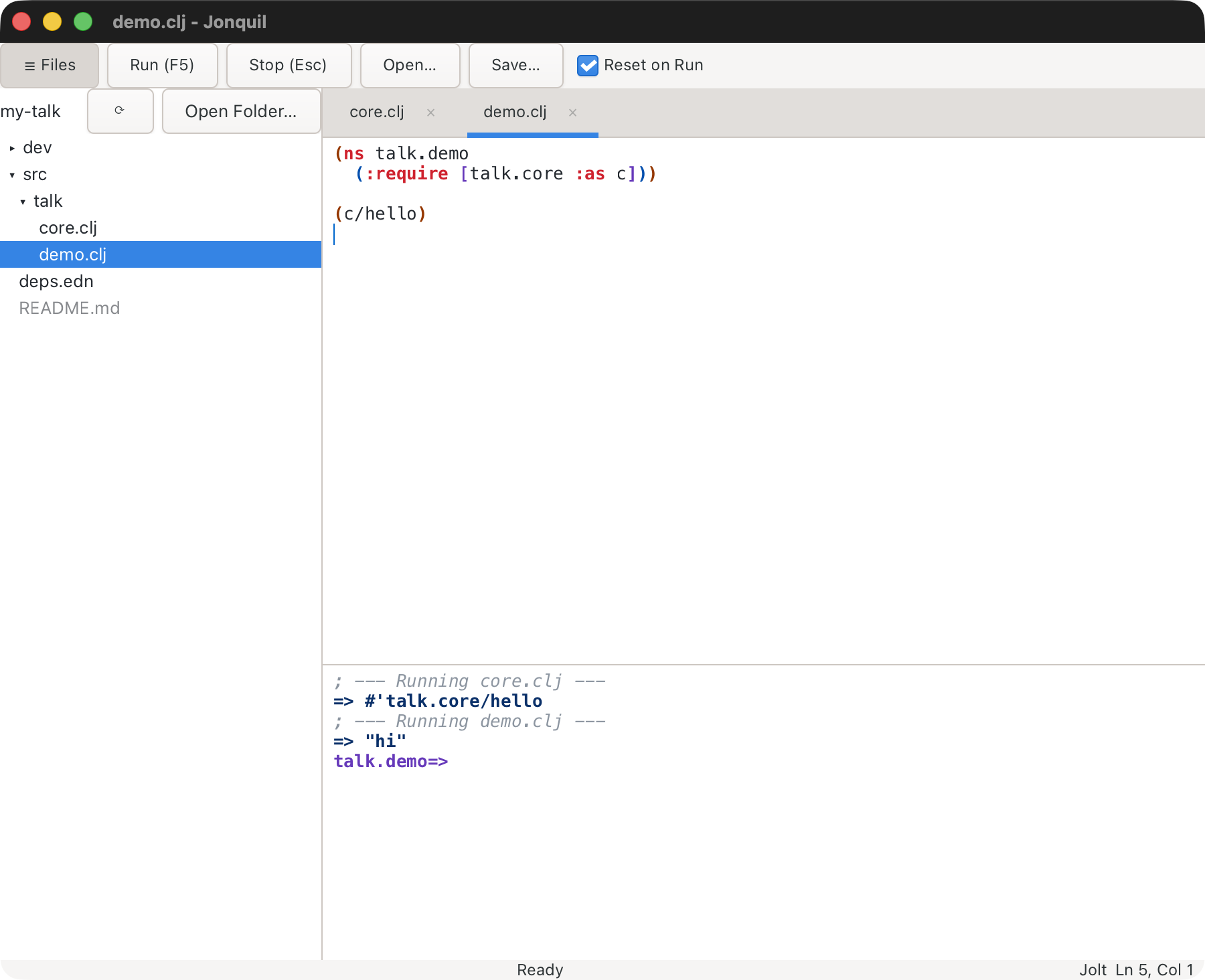
Launch Jonquil on a folder and you get a tree of it on the left:
jonquil ~/dev/my-talk          # the built binary
jolt app:run ~/dev/my-talk       # from a checkout
The window runs that folder's project (its deps.edn, pubspec.yaml or .jonquil.edn decides the dialect). Launched on a file, the tree roots at its project folder, or its own folder outside a project; with no argument it's the current directory. From Finder or the Dock it starts empty and offers Open Folder….
☰ Files or Cmd/Ctrl+Shift+E shows and hides it, and Jonquil remembers your choice and the tree's width (drag its edge).
- Click a folder to open or close it, a file to open it in a tab.
- With the tree focused: arrows move, Right and Left open and close a folder, Return opens, Escape returns to the editor.
- The active tab's row is highlighted. Saving or opening a file under the root expands to it.
What the tree hides, and refreshing it
- Hidden: dotfiles,
target,node_modules, and plain-name,*andfolder/lines from the root's.gitignore(lines with!,**or a/before the end, and nested.gitignorefiles, aren't applied). - Non-Clojure files are dimmed but still open.
- The tree doesn't watch the disk: ⟳ re-reads every open folder.
Files and folders
Right-click a row (or press Shift+F10 or the Menu key) for New File…, New Folder…, Rename… and Move to Trash. The empty space under the rows offers the first two, in the root. F2 renames; Delete or Cmd+Backspace (Ctrl+Backspace on Linux) trashes.
Rename and Trash details
- Return accepts a name, Escape cancels. A blank name,
/,./.., a name already in that folder, or one held by an open tab keeps the box open with the reason. Rename never overwrites. - Open tabs follow a rename and keep their unsaved text.
- Move to Trash always asks first and uses the system Trash, so nothing is deleted permanently. Tabs on a trashed file stay open; Save writes the file back (for a trashed folder, use Save As).
- Dragging rows to move them isn't supported yet.
This page is docs/guide/files-and-tabs.md in the Jonquil repository.