# Files and tabs
Opening and saving files, tabs, opening from Finder and the Dock, and the file tree.
## Open and Save
- Cmd/Ctrl+O opens a file in a new tab. A fresh, empty Untitled tab is
filled instead. A file that's already open just brings its tab forward.
- Cmd/Ctrl+S saves to the file's path, or opens a Save dialog if it has
none. Cmd/Ctrl+Shift+S always opens the dialog.
- A file that isn't valid UTF-8 still opens: bad bytes show as �, the
console warns, and the disk is untouched until you save.
- A file with a NUL byte in it doesn't open: the console names the line,
and the file on disk is untouched. A NUL usually means a binary file,
and GTK's text can't hold one, so opening it would silently cut
everything after it.
Saves are atomic (a temporary file, then a rename), so a crash can't leave
half a file. Saving through a symlink updates the file it points to.
### When the file changes on disk
Jonquil checks each open file about every two seconds, so an agent editing
files with its own tools, or a formatter, or `git checkout`, shows up in
the tab. Once the change has held for one check, a tab with no unsaved edits
reloads to the new text and keeps its caret. The reload is one undo step,
so Cmd/Ctrl+Z right after it brings your old text back (the tab then reads
unsaved). A tab with unsaved edits keeps them, and the new text on disk
becomes what it was last saved as, so the tab stays unsaved and a Save
writes your version over the one on disk. A file that now holds a NUL byte
leaves the tab as it was, and a deleted or moved file leaves it alone too.
Each of these gets a row in the [Messages panel](help-and-inspector.md#messages).
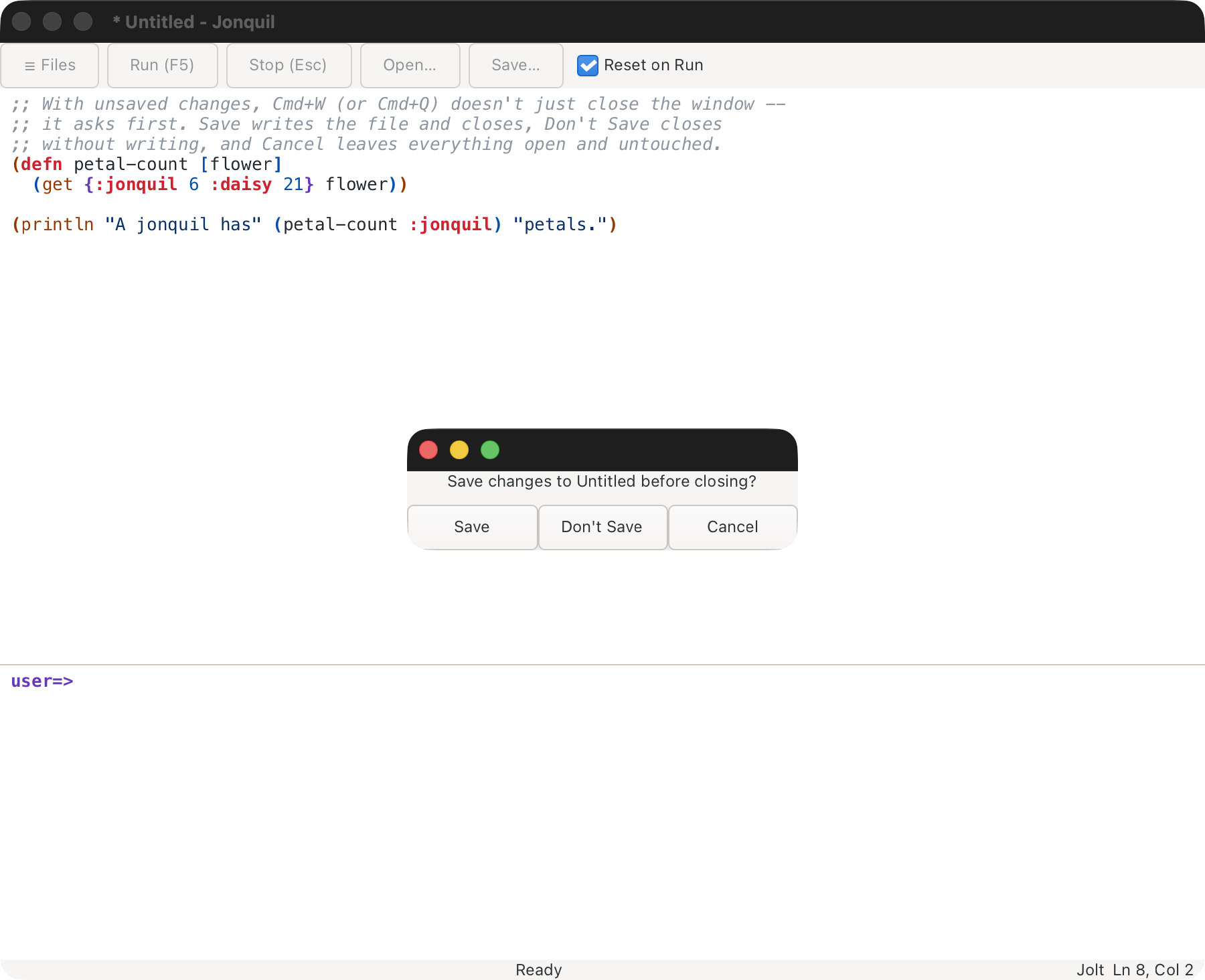
Closing with unsaved changes asks first, however you close (Cmd/Ctrl+W on
the last tab, the window button, Cmd+Q, logging out): Save, Don't Save or
Cancel. With several dirty tabs one prompt names them all, led by Save All.
Cancel, or a failed save, leaves the window open with the unsaved tab in
front.
## Tabs
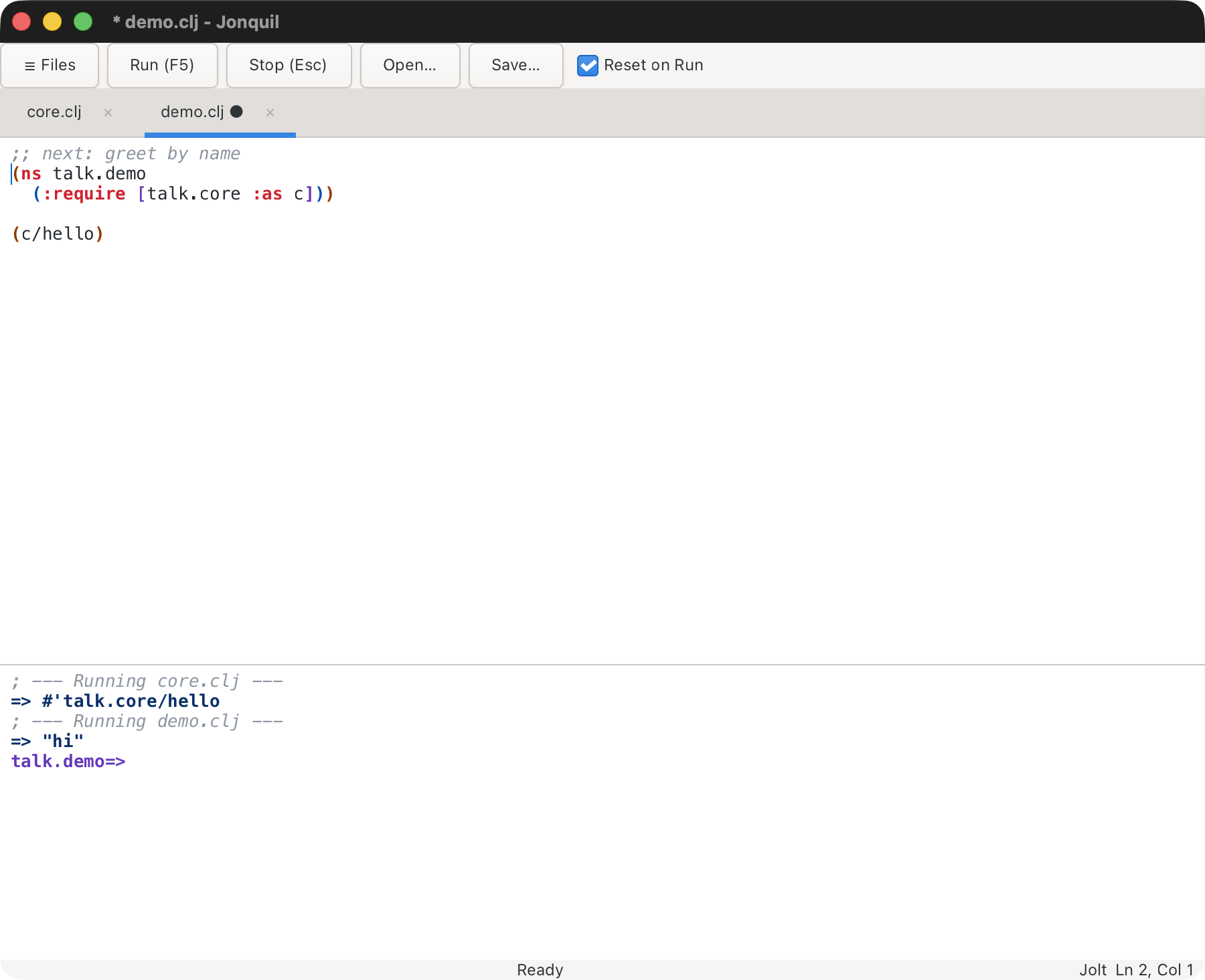
One window holds any number of files, one per tab. The tab strip appears
once there are two. A dot marks unsaved changes, and same-named files show
their folder (`core.clj · talk`).
- Cmd/Ctrl+T: new Untitled tab. Cmd/Ctrl+W or a tab's ×: close it.
- Cmd/Ctrl+Shift+] and Cmd/Ctrl+Shift+[: next and previous tab, wrapping.
- Cmd/Ctrl+1 to 8: jump to that tab; Cmd/Ctrl+9: the last.
- The command palette lists every other open tab as **Switch to tab: name**,
the one you used last first; **Go back to the tab used before** flips
between the last two.
All tabs share one evaluator and console, like a project REPL in CIDER or
Calva, so `demo.clj` can call what `core.clj` defined.
Edge cases with several tabs
- Reset on Run clears only that tab's namespaces, plus prompt-created ones
and `user`. Rerunning `core.clj` leaves `talk.demo` holding its old alias
until you rerun `demo.clj`.
- Every Run starts from a fresh `user`, so two Untitled tabs without an `ns`
form overwrite each other.
- A file from another project gets an editable tab, but Run, Run Selection,
Run Form and Inspect Form refuse there. A Jolt file outside any project
runs in the window's Jolt instead.
- With only one tab open, opening a file from another project switches the
window to that project.
### Tabs from last time
Jonquil remembers each project folder's open files, order and selected tab
(for the 20 most recent folders). Start it in that folder without naming a
file (`jonquil` or `jonquil `) and the tabs come back. From the
Dock or Finder it reopens the project you quit most recently.
- Untitled tabs and unsaved text aren't remembered. Naming a file at launch
opens just that file.
- A remembered file that's gone is skipped, and the console names it.
- The list lives in `sessions.edn`, next to `settings.edn` (see
[Themes](using-jonquil.md#themes)). `:reopen-tabs? false` in
`settings.edn` turns it off. The forms you evaluated are kept separately
(see [Last session's replay](using-jonquil.md#last-sessions-replay)).
## Opening from Finder and the Dock
With the macOS app installed (see
[Getting started](getting-started.md#the-macos-app)), Open With in Finder or
dropping files on the Dock icon opens each in a tab. Linux file managers do
the same (see [Linux](getting-started.md#linux)), and `jonquil a.clj b.clj`
works on both.
- A folder roots the file tree there. In a mixed command line, the first
argument sets the project and the rest open as tabs.
- Linux file managers don't offer Jonquil for folders. Run
`~/.local/share/jonquil/jonquil ` or
`gtk4-launch net.b12n.jonquil ` instead.
- A path that can't be read, or a non-local URI, is named on the status
line; the rest of the batch still opens.
## File tree
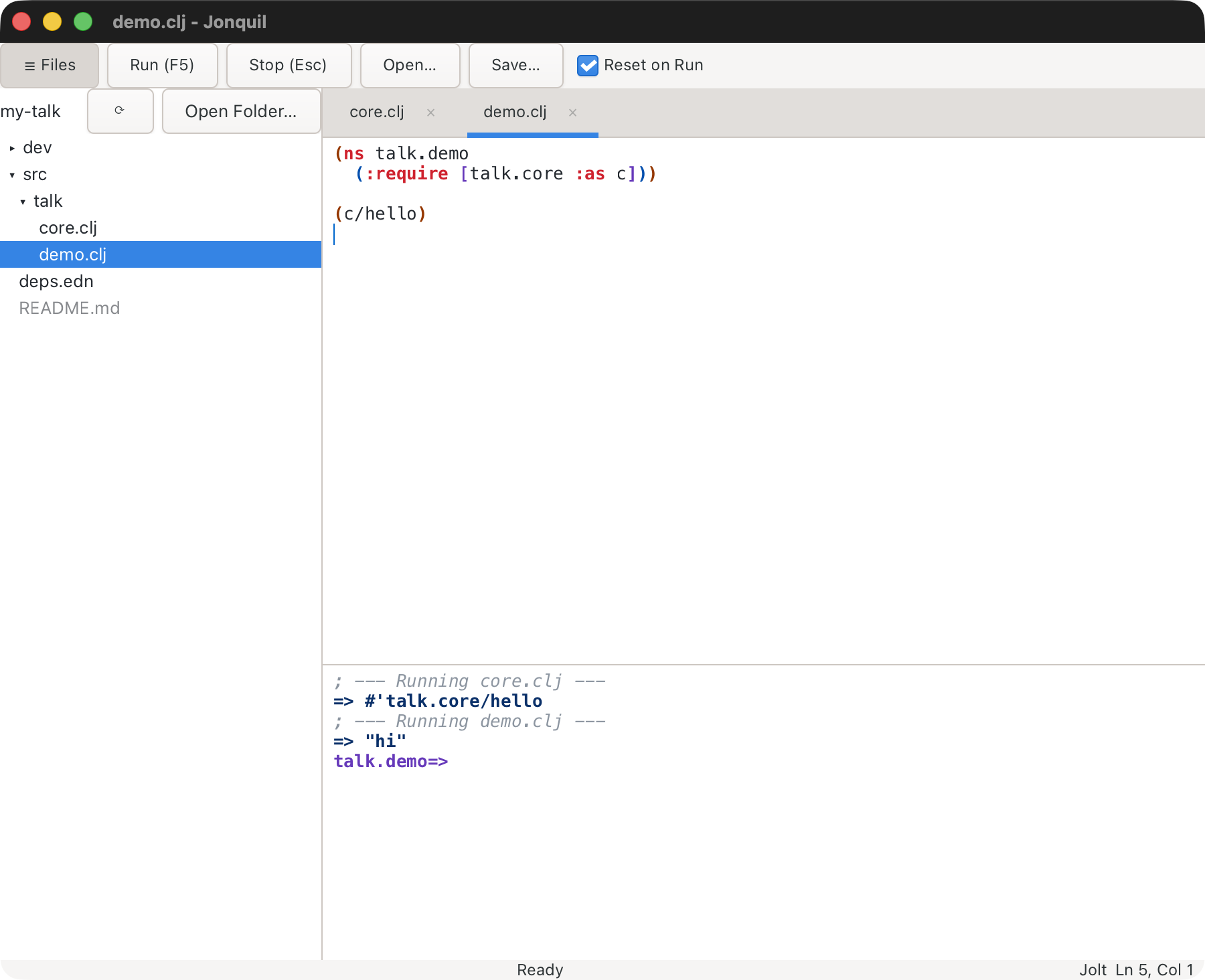
Launch Jonquil on a folder and you get a tree of it on the left:
```bash
jonquil ~/dev/my-talk # the built binary
jolt app:run ~/dev/my-talk # from a checkout
```
The window runs that folder's project (its `deps.edn`, `pubspec.yaml` or
`.jonquil.edn` decides the dialect). Launched on a file, the tree roots at
its project folder, or its own folder outside a project; with no argument
it's the current directory. From Finder or the Dock it starts empty and
offers **Open Folder…**.
**☰ Files** or Cmd/Ctrl+Shift+E shows and hides it, and Jonquil remembers
your choice and the tree's width (drag its edge).
- Click a folder to open or close it, a file to open it in a tab.
- With the tree focused: arrows move, Right and Left open and close a
folder, Return opens, Escape returns to the editor.
- The active tab's row is highlighted. Saving or opening a file under the
root expands to it.
What the tree hides, and refreshing it
- Hidden: dotfiles, `target`, `node_modules`, and plain-name, `*` and
`folder/` lines from the root's `.gitignore` (lines with `!`, `**` or a `/`
before the end, and nested `.gitignore` files, aren't applied).
- Non-Clojure files are dimmed but still open.
- The tree doesn't watch the disk: ⟳ re-reads every open folder.
### Files and folders
Right-click a row (or press Shift+F10 or the Menu key) for **New File…**,
**New Folder…**, **Rename…** and **Move to Trash**. The empty space under the
rows offers the first two, in the root. F2 renames; Delete or Cmd+Backspace
(Ctrl+Backspace on Linux) trashes.
Rename and Trash details
- Return accepts a name, Escape cancels. A blank name, `/`, `.`/`..`, a name
already in that folder, or one held by an open tab keeps the box open with
the reason. Rename never overwrites.
- Open tabs follow a rename and keep their unsaved text.
- Move to Trash always asks first and uses the system Trash, so nothing is
deleted permanently. Tabs on a trashed file stay open; Save writes the
file back (for a trashed folder, use Save As).
- Dragging rows to move them isn't supported yet.